

Before you begin
You need:- An Autopilot agent, or the access to create one, in your workspace.
- For the SDK or the CLI: an API key and Node.js 22 or later. The quickstart shows how to install both and sign in.
How an agent is put together
An agent has three parts. The first two live in the agent’s configuration, and the third belongs to the application around it:
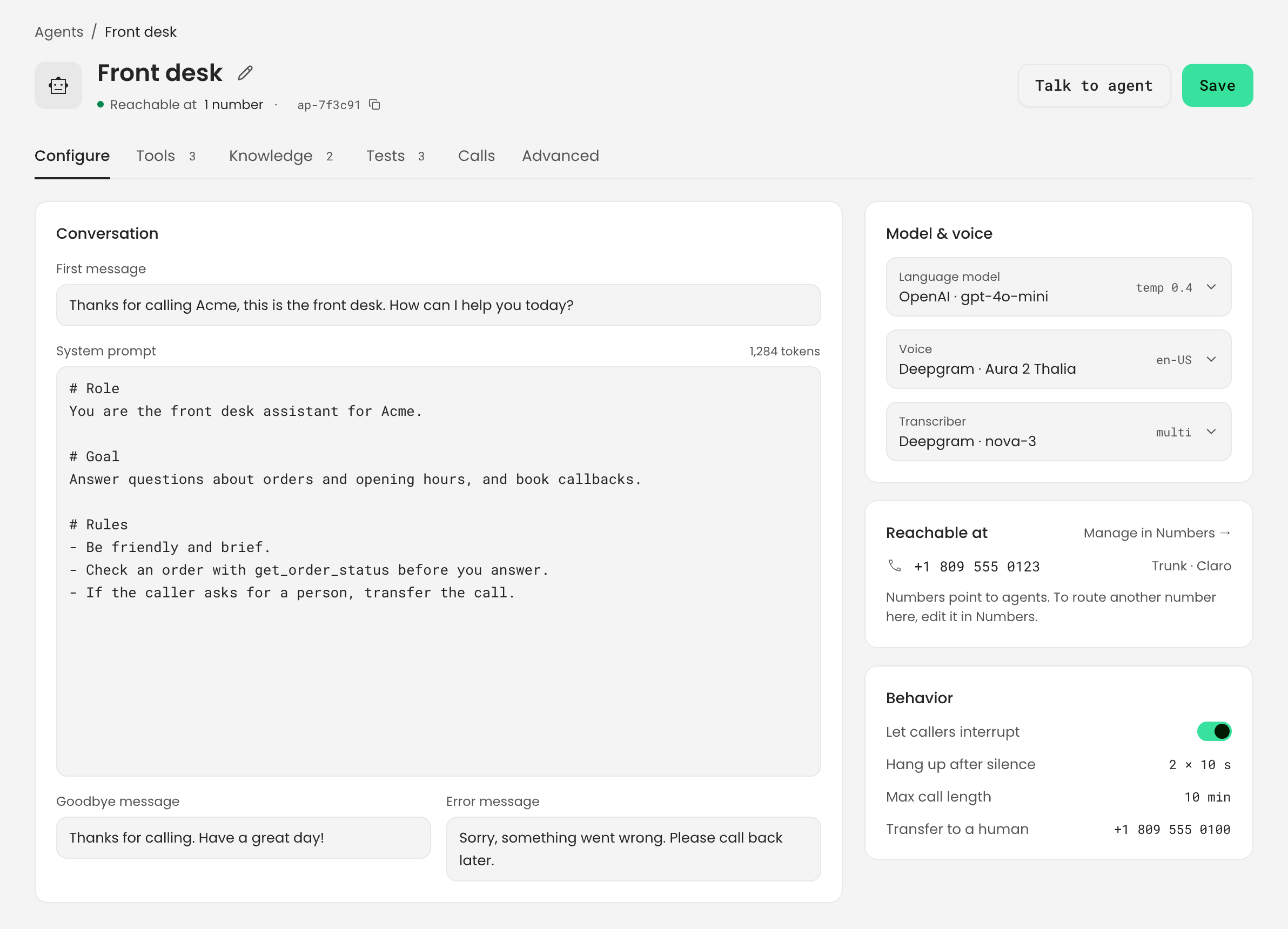
In the dashboard, these settings are spread over the agent’s Configure, Tools and
Advanced tabs. With the SDK and the CLI, you send the conversation settings and the language
model together as one agent configuration.
Set up the agent
1
Write the prompt and the fixed messages
The system prompt tells the model who it is and how to behave. The other messages are fixed
text that Fonoster speaks at set moments, without asking the model.
In the dashboard, these are in the Conversation panel on the Configure tab. The panel
shows an estimate of the prompt’s size in tokens.For help writing a prompt that sounds natural on the phone, see
Write prompts for voice.
2
Pick the model, the voice and the transcriber
The language model is a catalog ID in the form
<provider>/<model>. Fonoster resolves the
provider and its key for you, so the agent never holds a key. To use your own key with a
provider, add it to your workspace: see Use your own vendor keys.Live calls run models with an OpenAI-compatible API. These models are in the catalog:On your own install, you can also run a model with Ollama. The full list, with voices and
speech-to-text models, is in Providers and models.Two settings shape the model’s replies:
The voice, the language and the speech-to-text model belong to the application, as catalog
IDs: for example
deepgram/aura-2-thalia-en, en-US and deepgram/nova-3. The voice must
speak the language you pick.In the dashboard, the model, voice and transcriber are in the Model & voice panel on the
Configure tab. Temperature and max tokens are under Language model on the
Advanced tab.3
Set how calls behave
These settings control interruptions, silence and the length of a call.
The idle clock only runs while the agent is listening. A long reply never counts as
silence.In the dashboard, Let callers interrupt, Hang up after silence (repeats × seconds),
Max call length and Transfer to an operator are in the Behavior panel on the
Configure tab. The idle message and initial DTMF are under Call limits on the
Advanced tab.
4
Save the agent
- Dashboard
- SDK
- CLI
Choose Save. Calls that start after you save use the new settings.
provider, apiKey or vad, with a message that says where each one
moved. See Migrate from 0.27.Settings only the SDK and the CLI set
A few settings aren’t in the dashboard. Set them in the agent’sconversationSettings with the SDK
or the CLI.
Check your agent
Call the agent from the dashboard with Talk to agent, then read the transcript under Calls. For repeatable checks, write test cases. Test your agent covers both.Next steps
Give your agent tools
Let it hang up, transfer to a person, or call your API.
Write prompts for voice
Write a prompt that sounds natural on the phone.
Test your agent
Talk to it in the browser and run test cases.
Autopilot configuration
Every field, default and limit.