

hangup and transfer. You add your own
HTTP tools to look up an order, book an appointment or update a record in your systems.
Autopilot runs built-in tools and HTTP tools only. It doesn’t support MCP tools or code tools.
To reach an MCP server, put an HTTP endpoint in front of it, or build a
stream and call it from your own code.
Before you begin
You need an Autopilot agent. See Build an Autopilot agent.Built-in tools
You don’t add these tools to the tool list. Tell the model when to use them in the system prompt,
for example: “When the caller has what they need, hang up.” The model doesn’t need to say goodbye
itself, because Fonoster speaks the goodbye message for it.
Turn on transfers
Thetransfer tool needs a number to send the caller to, and a message to say first.
- Dashboard
- SDK
- CLI
- Open the agent and go to the Configure tab.
- In the Behavior panel, enter a number under Transfer to an operator, such as
+18095550100. - Enter what the agent says before it transfers under Transfer message.
- Optionally, enter what it says when nobody takes the call under If the transfer fails.
- Choose Save.
transfer as On with the number.Add an HTTP tool
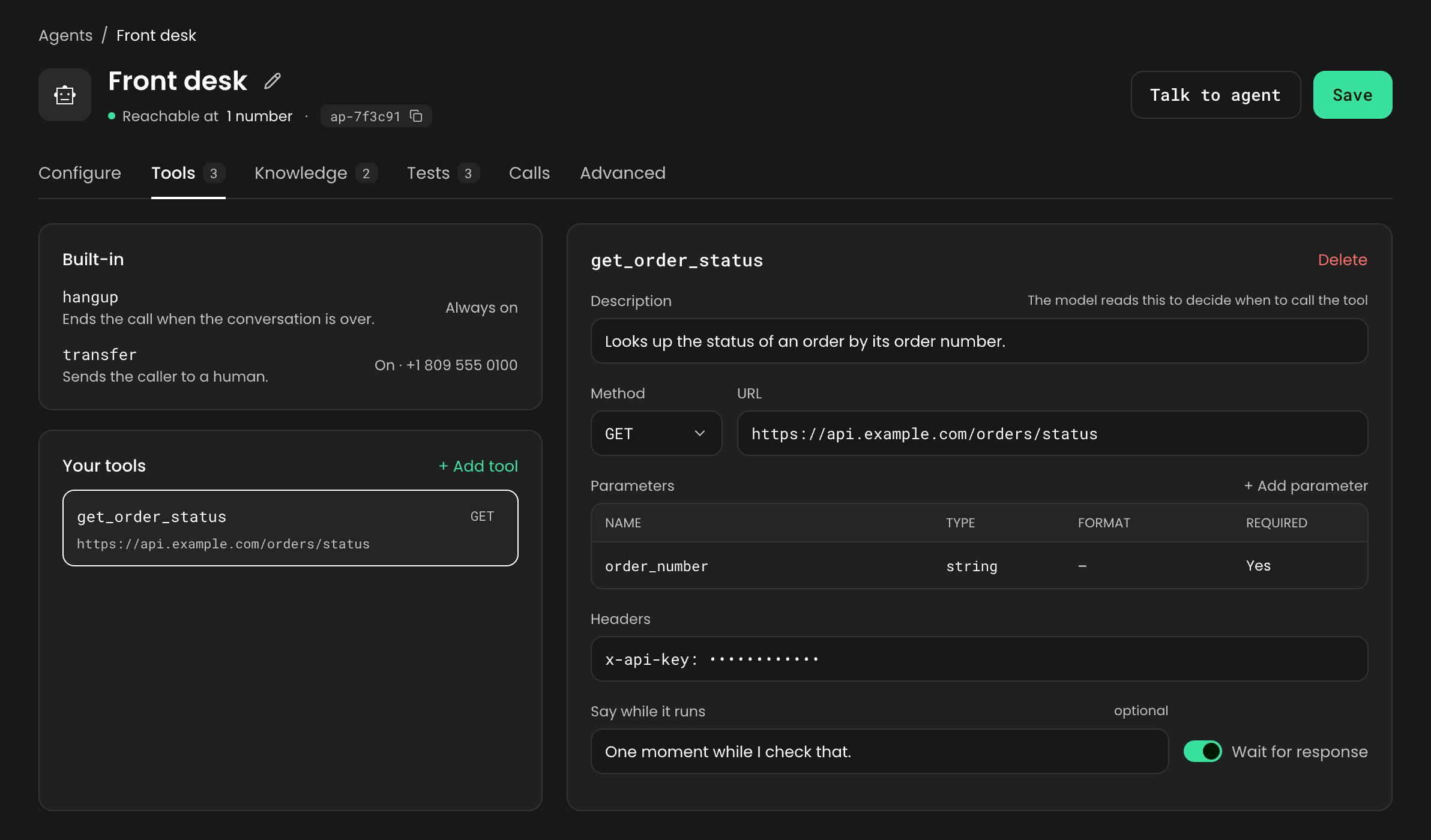
An HTTP tool is a description the model reads plus a request Fonoster makes. In this example, the agent looks up an order by its number.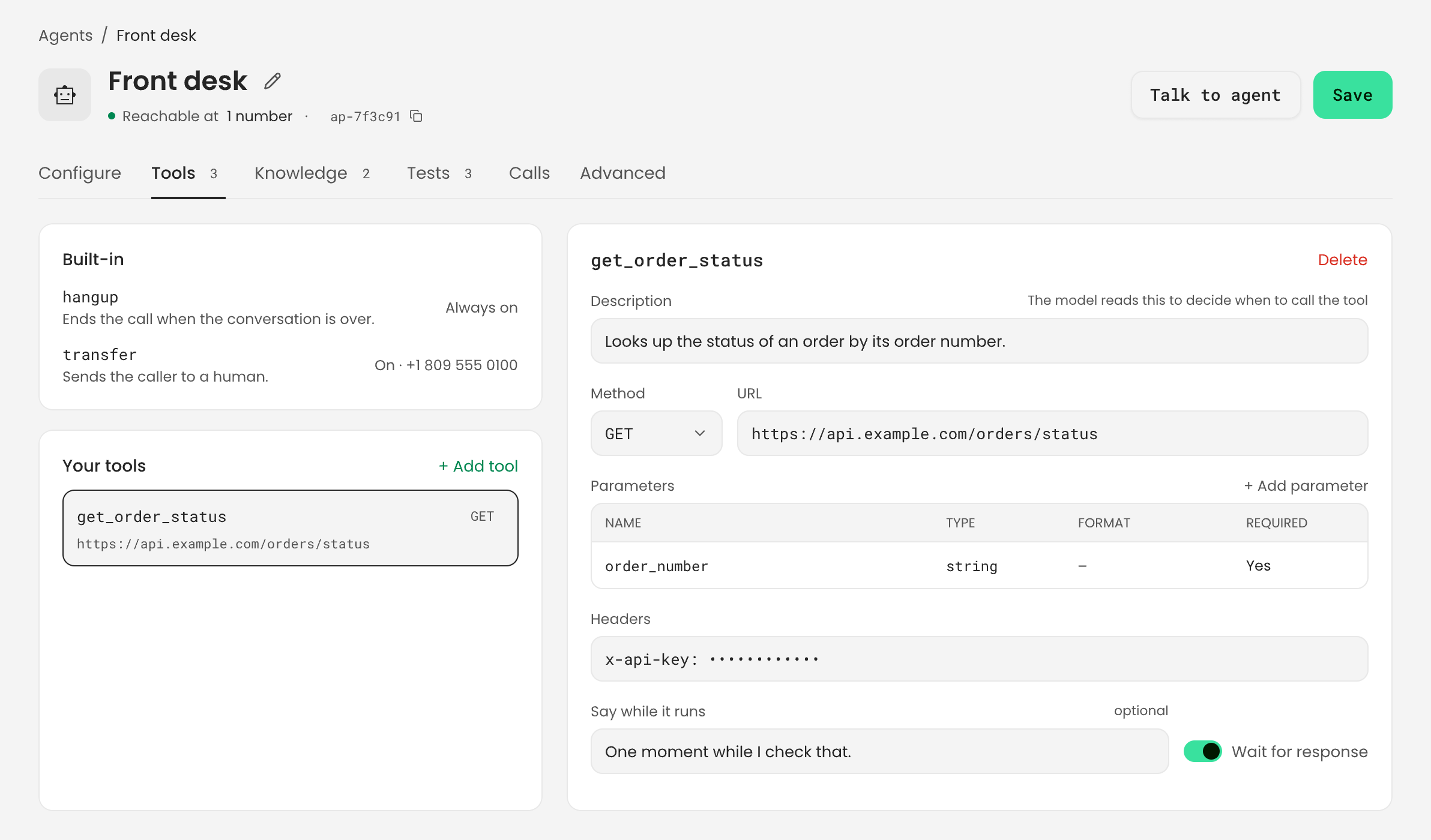
1
Describe the tool
Give the tool a name and a description. The model reads both to decide when to call it, so say
plainly what the tool does and when to use it.
- Name: letters, numbers, underscores and hyphens, up to 64 characters.
hangupandtransferare taken. - Description: one or two sentences, such as “Look up the status of an order by its order number. Use it when the caller asks where their order is.”
2
Define the parameters
Parameters are the values the model fills in from the conversation. Each parameter has a
name, a type such as
string or number, and whether it’s required. A string can also take
a format (enum or date-time) or a pattern, but not both.A tool with no parameters is fine: the model calls it without arguments.3
Point it at your API
Set the request Fonoster makes when the model calls the tool:
4
Save the tool
- Dashboard
- SDK
- CLI
- Open the agent and go to the Tools tab.
- Under Your tools, choose + Add tool.
- Enter the name, the Description, the Method and the URL.
- Under Parameters, choose + Add parameter for each value, such as
order_numberof typestring. - Under Headers, choose + Add header if your API needs one, such as
x-api-key. - Enter Say while it runs, and keep Wait for response on.
- Choose Save.
What your API should return
Return JSON with what the model needs to answer, and keep it small. For example:Keys in headers
Header values are stored as plain text in the agent’s configuration. Anyone who can read the agent in your workspace can see them. Fonoster doesn’t fill headers from Secrets: those hold vendor keys for speech and models. Give each tool a key that only works for that tool’s endpoint, and rotate it like any other credential.Where tools can reach
Tool URLs must be public. Fonoster blocks requests to private and local addresses, such aslocalhost or 10.0.0.0/8, and checks every redirect. On your own install, the operator can allow
specific internal hosts. See Install with Docker Compose.
Check your tools
- Call the agent with Talk to agent and ask for something that needs the tool. The call record keeps each tool call and whether it worked.
- Add tool expectations to your test cases. Test runs never call your endpoints. See Test your agent.
Next steps
Write prompts for voice
Tell the model when to use each tool.
Test your agent
Check that the model picks the right tool with the right values.
Transfer calls
Cold, warm and refer transfers.
Autopilot configuration
Every tool field and its limits.