

Before you begin
Ask your carrier for:- How they authenticate you: by IP address, by username and password, or both.
- Where to send outbound calls: a host name or IP, a port and a transport (UDP, TCP or TLS).
- The addresses they send calls from, if you want to accept calls from those addresses only.
- The format of your numbers in the calls they send, so you can add them exactly as sent.
Find your connection details
Your carrier needs to know where to send calls and which addresses to allow. The trunk form in the dashboard shows both, under Inbound URI:Point your carrier atGive your carrier the SIP address, and ask them to allowlist the listed addresses if they filter by IP. If your workspace runs in a private region, the region’s own addresses are under Settings → Region, in Connection details.<host>:<port>(<transport>); allowlist<addresses>.
Create the trunk
1
Add credentials (if your carrier uses them)
If your carrier gave you a username and password, save them as credentials first. Fonoster uses
them to sign in when it sends calls to the carrier.Usernames take lowercase letters, numbers, dots, underscores and hyphens.
- Dashboard
- CLI
Go to Credentials, choose Add credentials, and enter a Name, the Username
and the Password. Passwords are never shown again.
2
Add an access control list (optional)
An access control list (ACL) is an allowlist of IP addresses. Attach one to the trunk so only
your carrier’s addresses can send calls in. Anything not listed is rejected.
- Dashboard
- CLI
Go to ACLs, choose Add ACL, name it (for example
Acme signaling IPs), and add
each address or range, such as 200.88.12.0/24.3
Create the trunk
- Dashboard
- SDK
- CLI
Go to Trunks and choose Add trunk. The form has three parts.Inbound · carrier → Fonoster
- Name: the carrier’s name, such as
Acme. - Inbound URI: a short label that identifies this trunk, such as
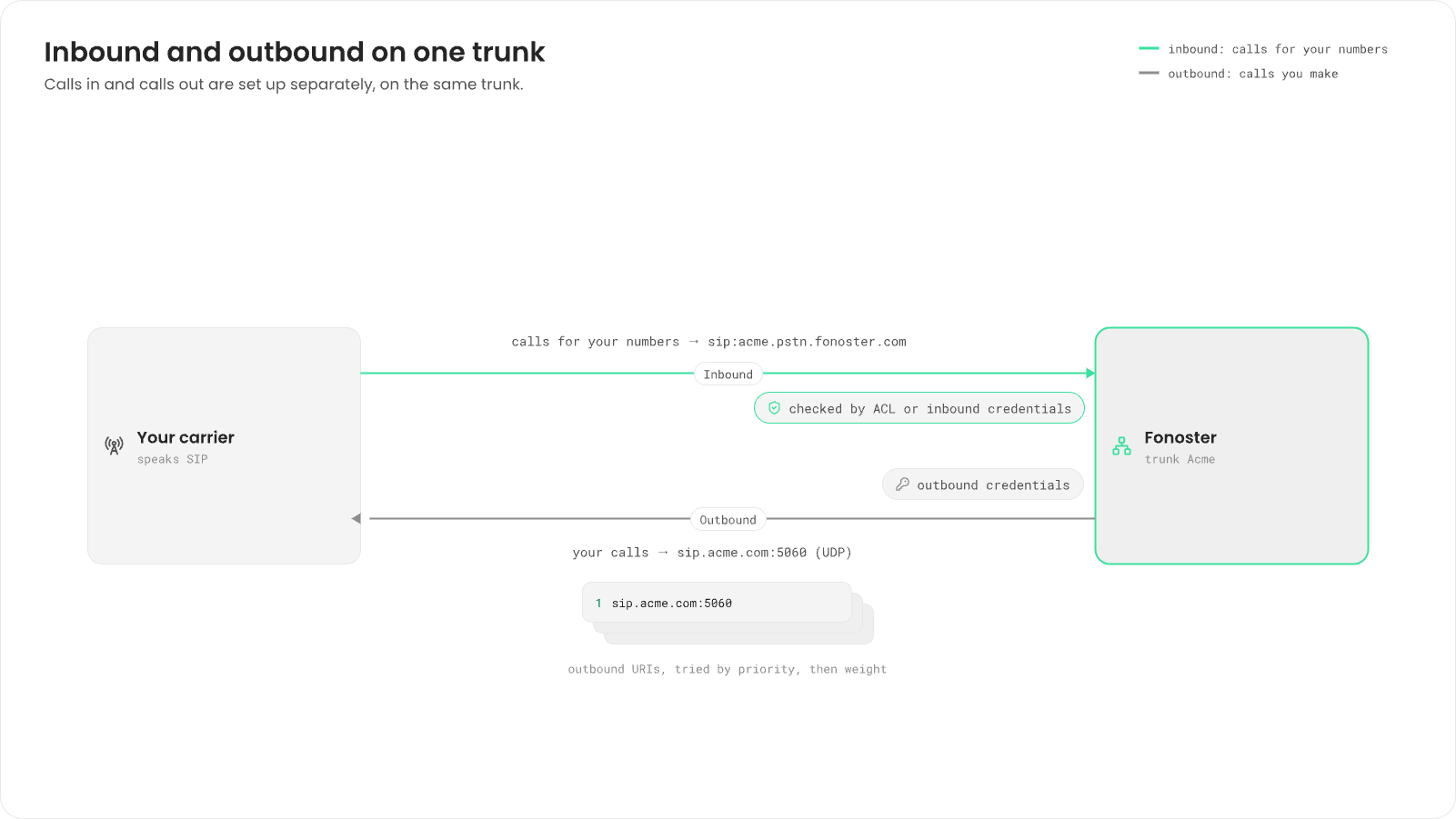
acme. The form adds your install’s.pstn.<domain>, so the URI readsacme.pstn.fonoster.com. Give it to your carrier: they send calls for your numbers to this host. It must be unique, so if it’s taken, pick another.
- Access control list: the ACL from the previous step.
- Inbound credentials: credentials your carrier must sign in with when it sends you calls. Use them if your carrier authenticates by password instead of IP.
- Outbound credentials: the credentials from the first step.
- Send REGISTER: turn on only if your carrier requires registration.
4
Add your numbers
Add each of your carrier’s numbers to the trunk, in E.164 format, exactly as the carrier sends
them. Point each one at an agent, a stream or a SIP agent. See
Numbers and routing.
Configure your carrier
In your carrier’s portal, set up:- Inbound (their origination): send calls for your numbers to
sip:<your inbound URI>, such assip:acme.pstn.fonoster.com, at the SIP address from the trunk form. - Authentication: allowlist the addresses the trunk form lists, or give them the inbound credentials you attached to the trunk.
- Outbound (their termination): accept calls from the addresses the trunk form lists, signed in with the outbound credentials if you set them.
Check it
- Call one of the trunk’s numbers from any phone. The agent, stream or SIP agent it points at answers.
- Place an outbound call from the number. See Make outbound calls.
- Check that the number in Fonoster matches what the carrier sends,
+included. - If the trunk has an ACL, check that it lists every address the carrier sends from.
- Check that the carrier sends to your inbound URI, not to a different host.
Delete a trunk
Go to Trunks, open the trunk and choose Delete, or runfonoster sipnet:trunks:delete <ref>. Calls to and from the carrier stop.
For every command and method, see Trunks in the CLI reference and the
Node SDK reference.
Next steps
Numbers and routing
Add the carrier’s numbers and send their calls somewhere.
Make outbound calls
Call out through the trunk.
SIP agents
Connect softphones and desk phones.
Transfer calls
Send callers to an operator through the same trunk.