

Two ways to get a number
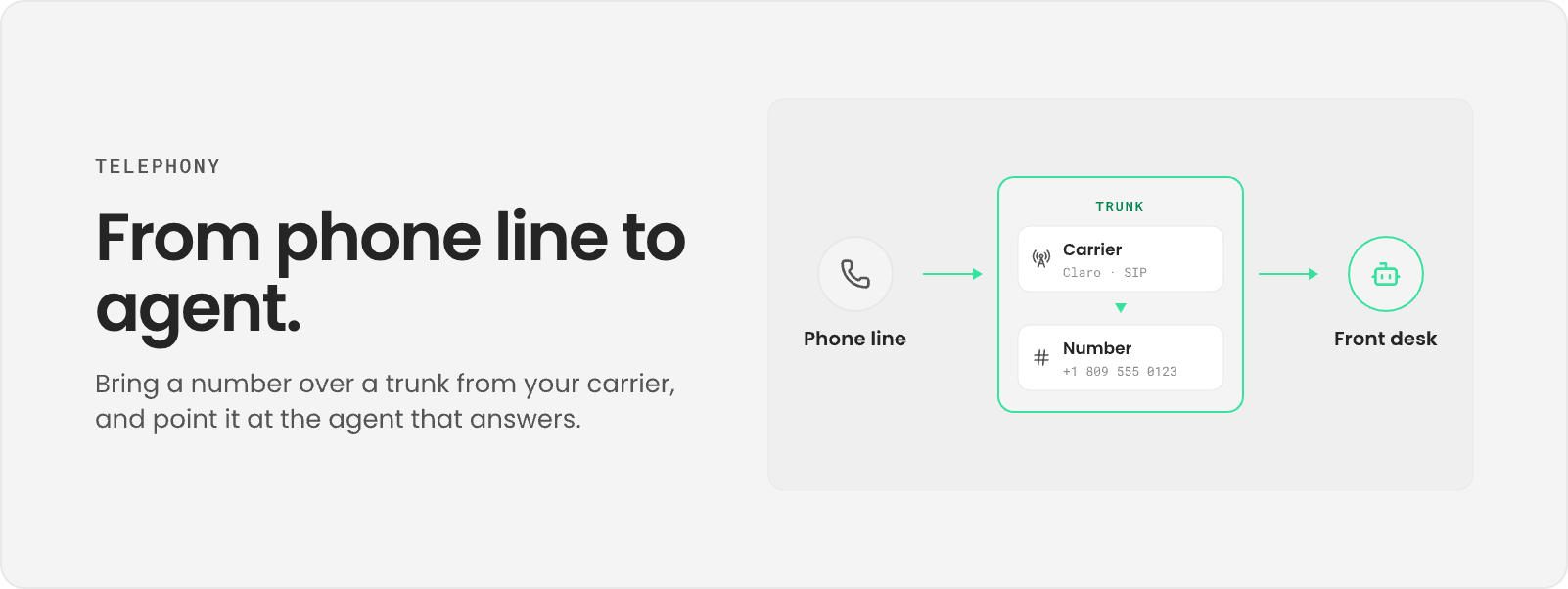
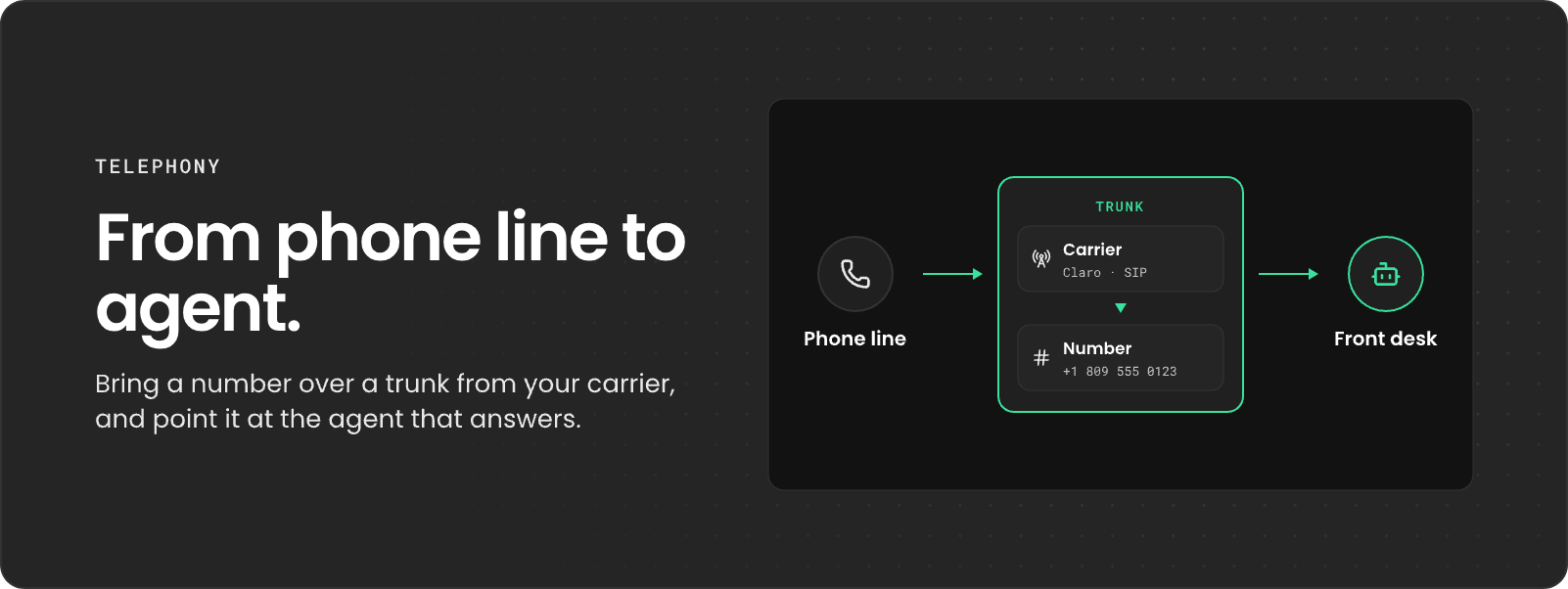
Fonoster doesn’t sell numbers. You bring a number you already have from a carrier, in one of two ways:
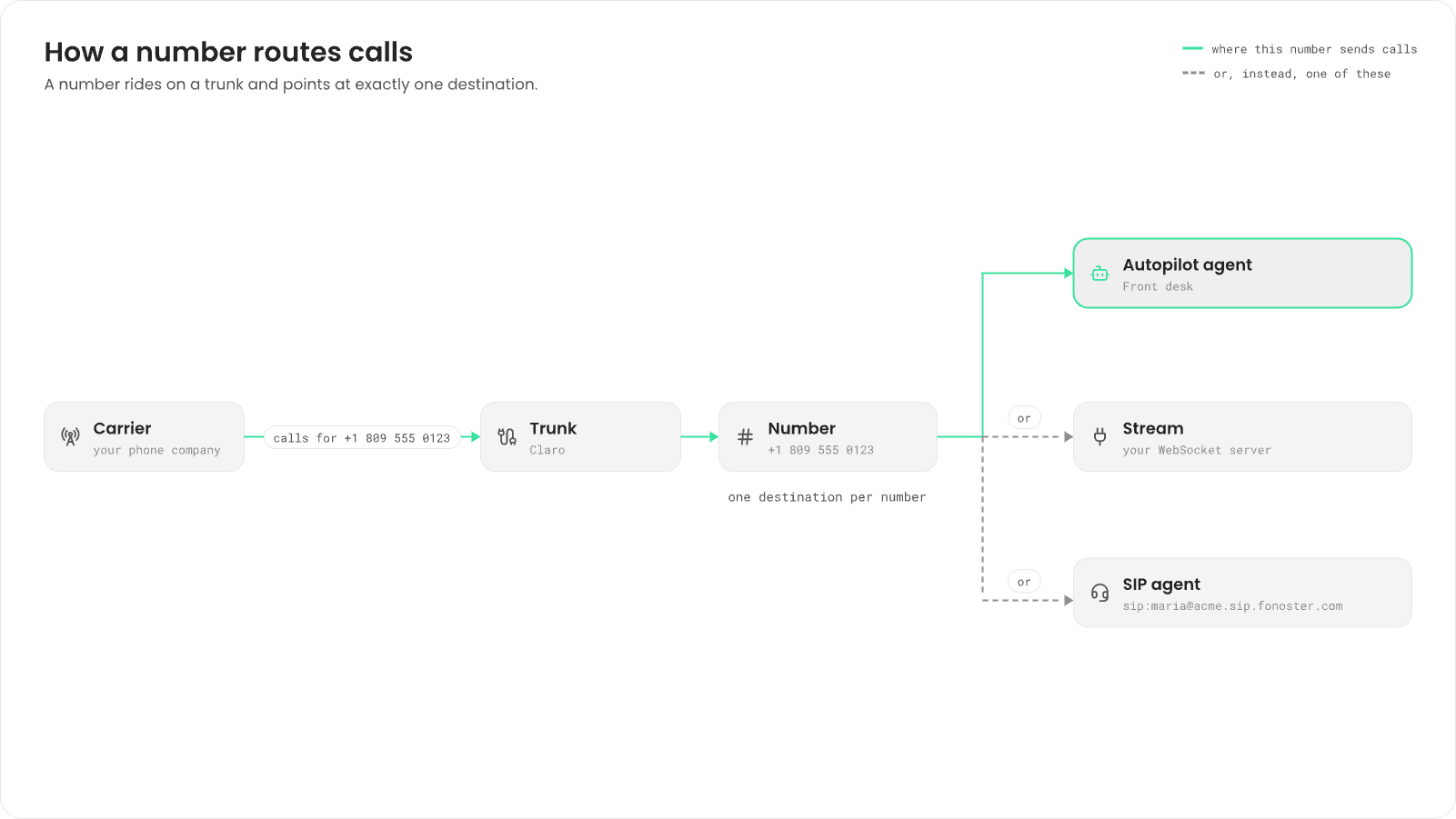
Both end up the same in your workspace: a number on a trunk. Everything below works for either.
Before you begin
You need:- A trunk in your workspace. Connect a SIP trunk shows how to create one.
- An Autopilot agent, a stream or a SIP agent to send calls to.
Add a number
Add the number exactly as your carrier sends it, in E.164 format (+ then country code and
number, no spaces), such as +18095550123. Fonoster matches incoming calls to the number by this
value, so a number in another format never rings.
- Dashboard
- SDK
- CLI
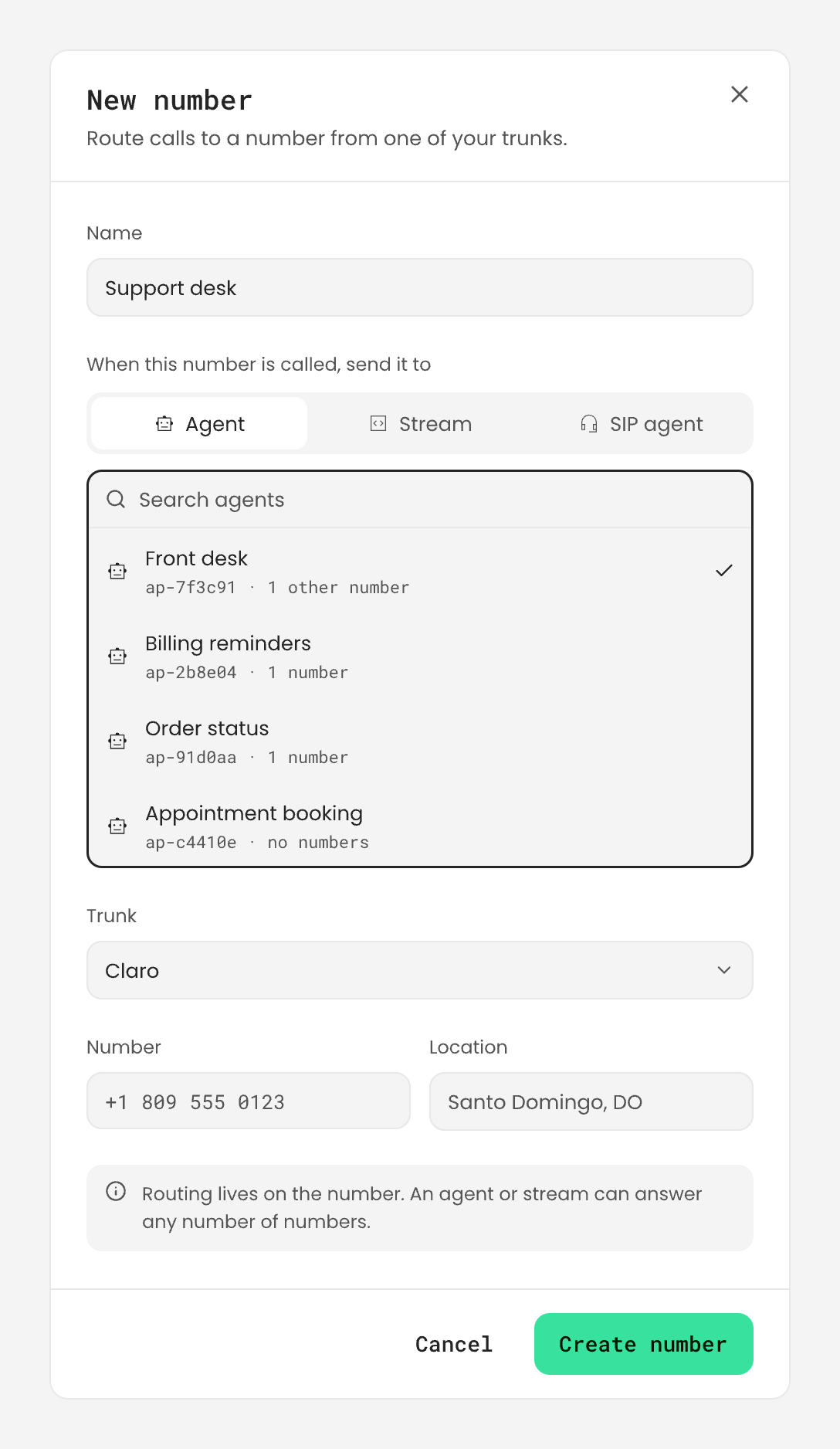
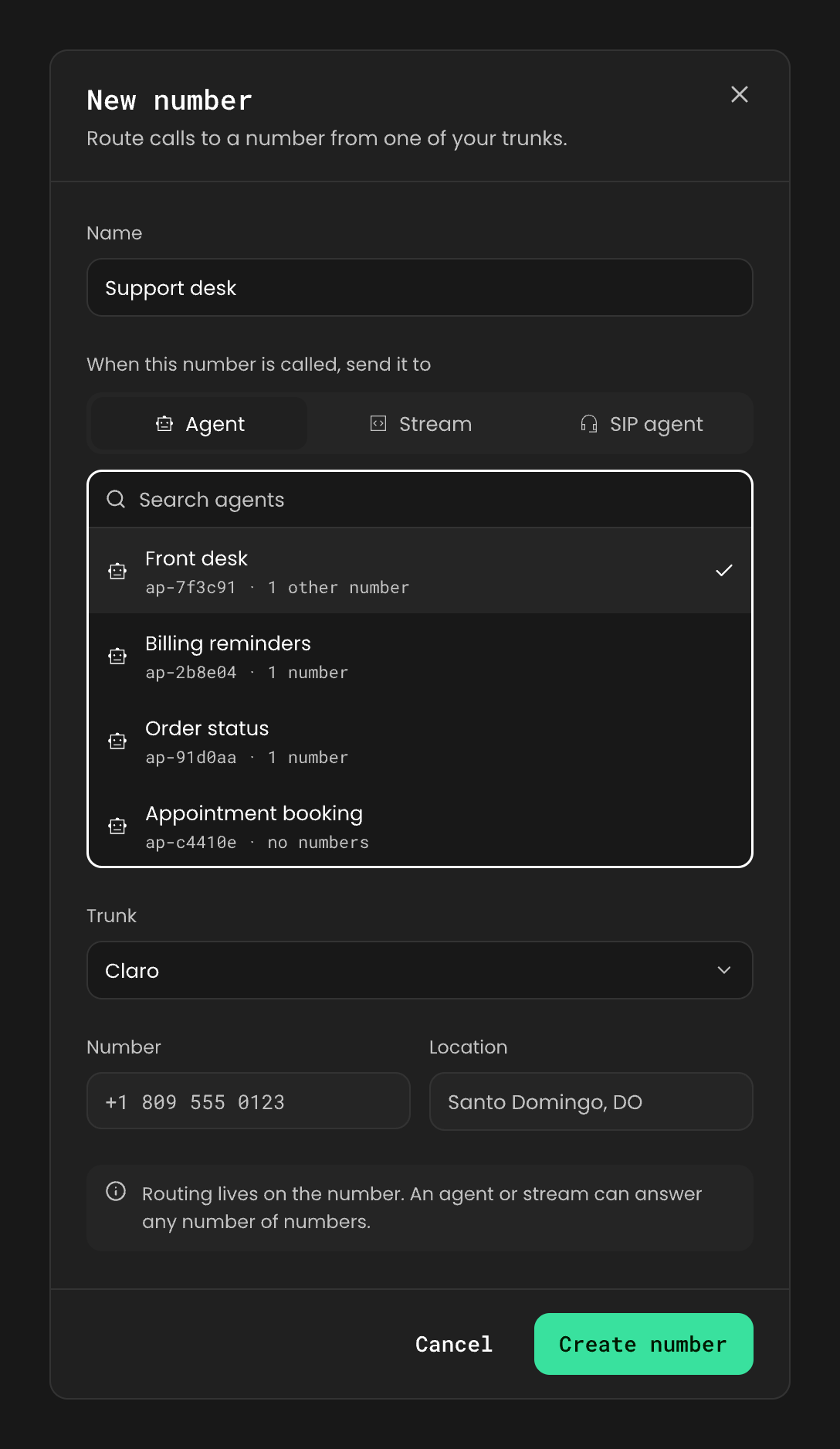
- Go to Numbers and choose Add number.
- Under Number, enter
+18095550123. - Under Name, enter a name you’ll recognize, such as
Support desk. - Under When this number is called, send it to, choose Autopilot agent, Stream or SIP agent, then pick one from the list.
- Under Trunk, choose the trunk the number belongs to.
- Enter the City and choose the Country.
- Choose Save.
Choose where calls go
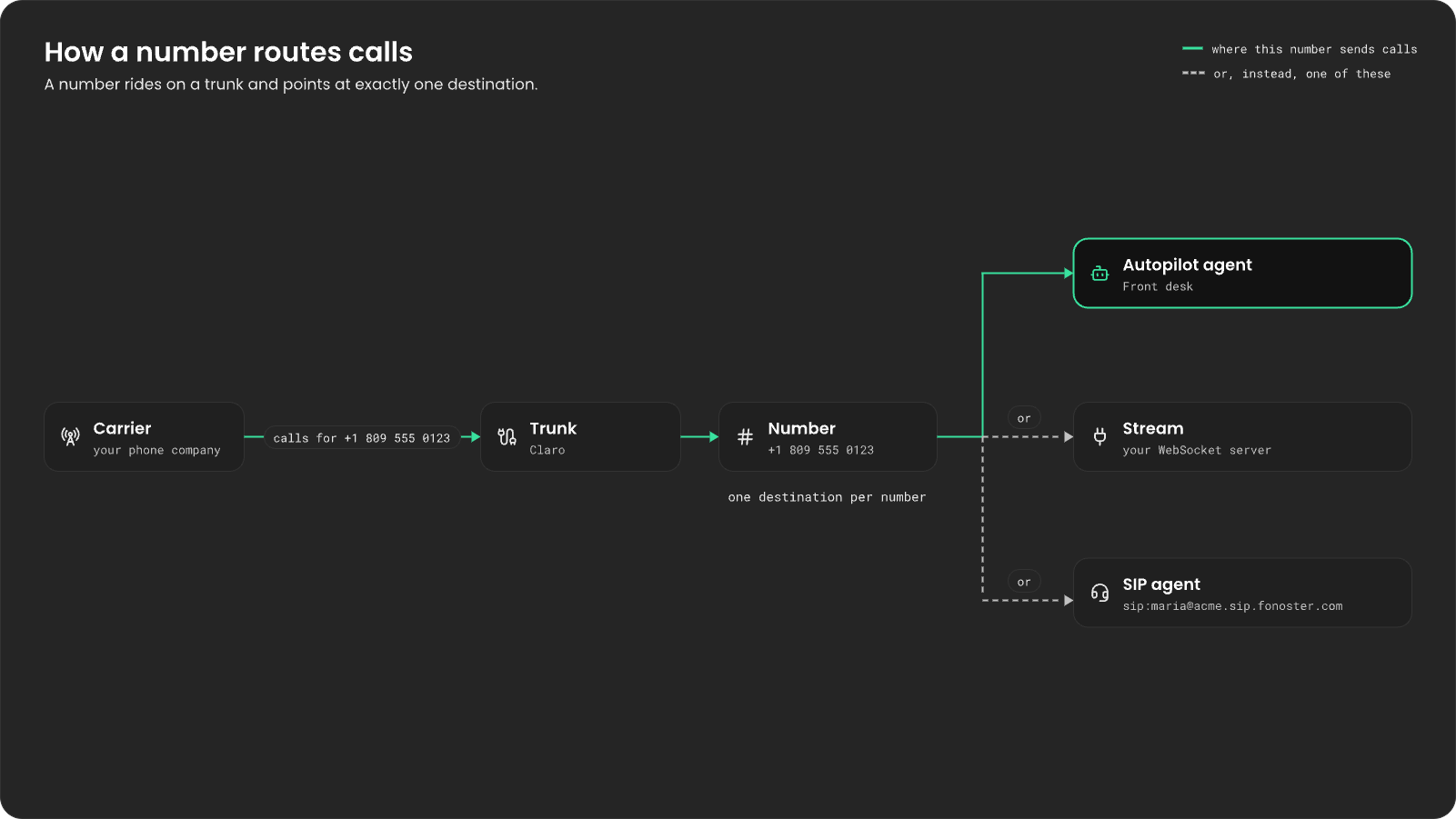
A number sends every call to one destination:
Set
appRef or agentAor, not both. A number with neither doesn’t take calls.
One agent or stream can answer as many numbers as you like. To move a number to a different
destination, change it on the number:
- Dashboard
- SDK
- CLI
Go to Numbers, open the number, pick the new destination under When this number is
called, send it to, and choose Save.
Check it
List your numbers to see each one’s trunk and destination:- Check that the number matches what your carrier sends,
+included. - Check that the trunk’s inbound settings match your carrier. See Connect a SIP trunk.
Remove a number
Go to Numbers, open the number and choose Remove number, or runfonoster sipnet:numbers:delete <ref>. Calls to the number stop reaching Fonoster. The number
stays with your carrier.
For every command and method, see Numbers in the CLI reference and the
Node SDK reference.
Next steps
Link a Twilio number
The fastest way to a real number.
Connect a SIP trunk
Bring any carrier that speaks SIP.
Make outbound calls
Call people from one of your numbers.
SIP agents
Ring a softphone or desk phone instead of an application.