

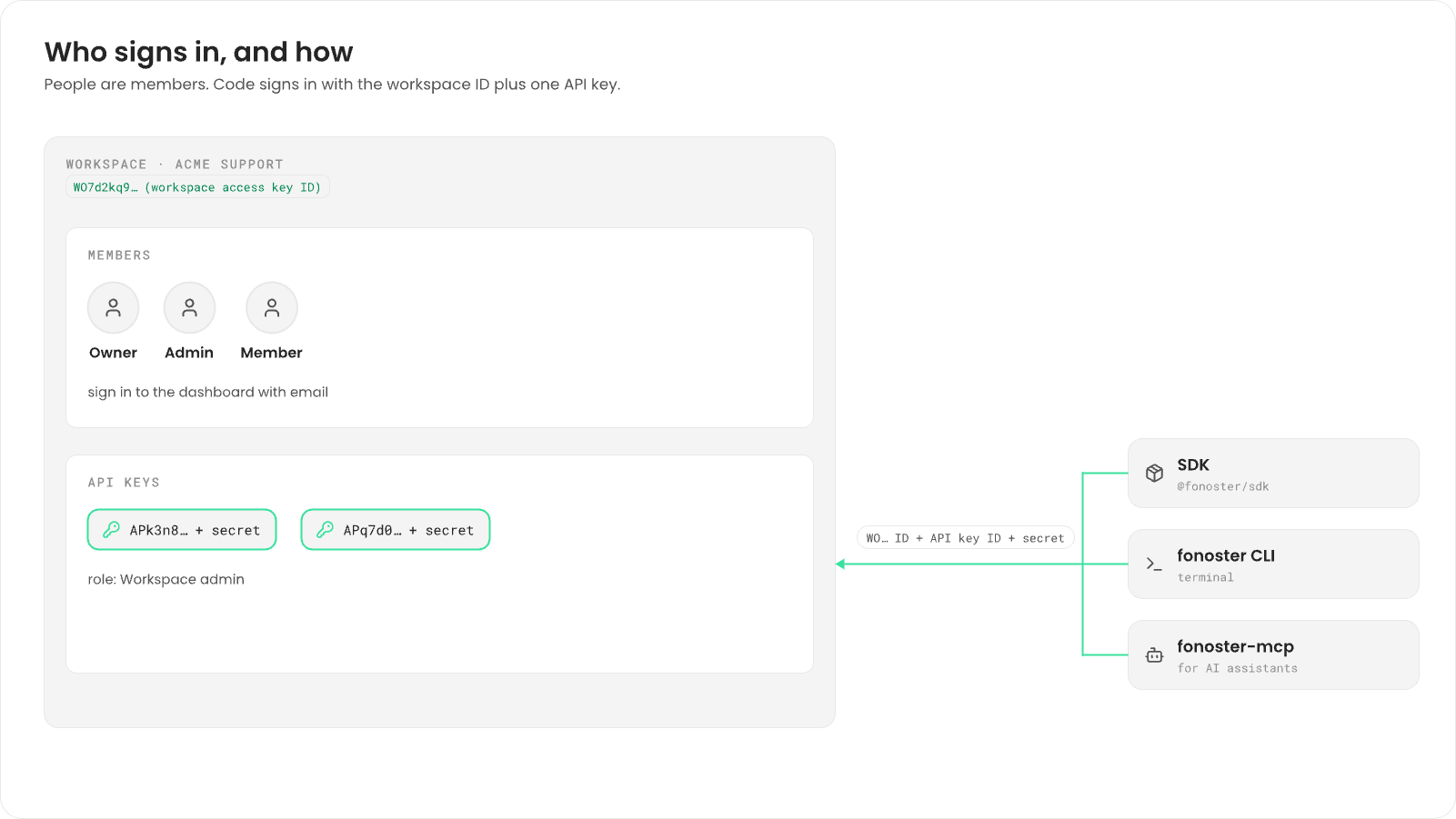
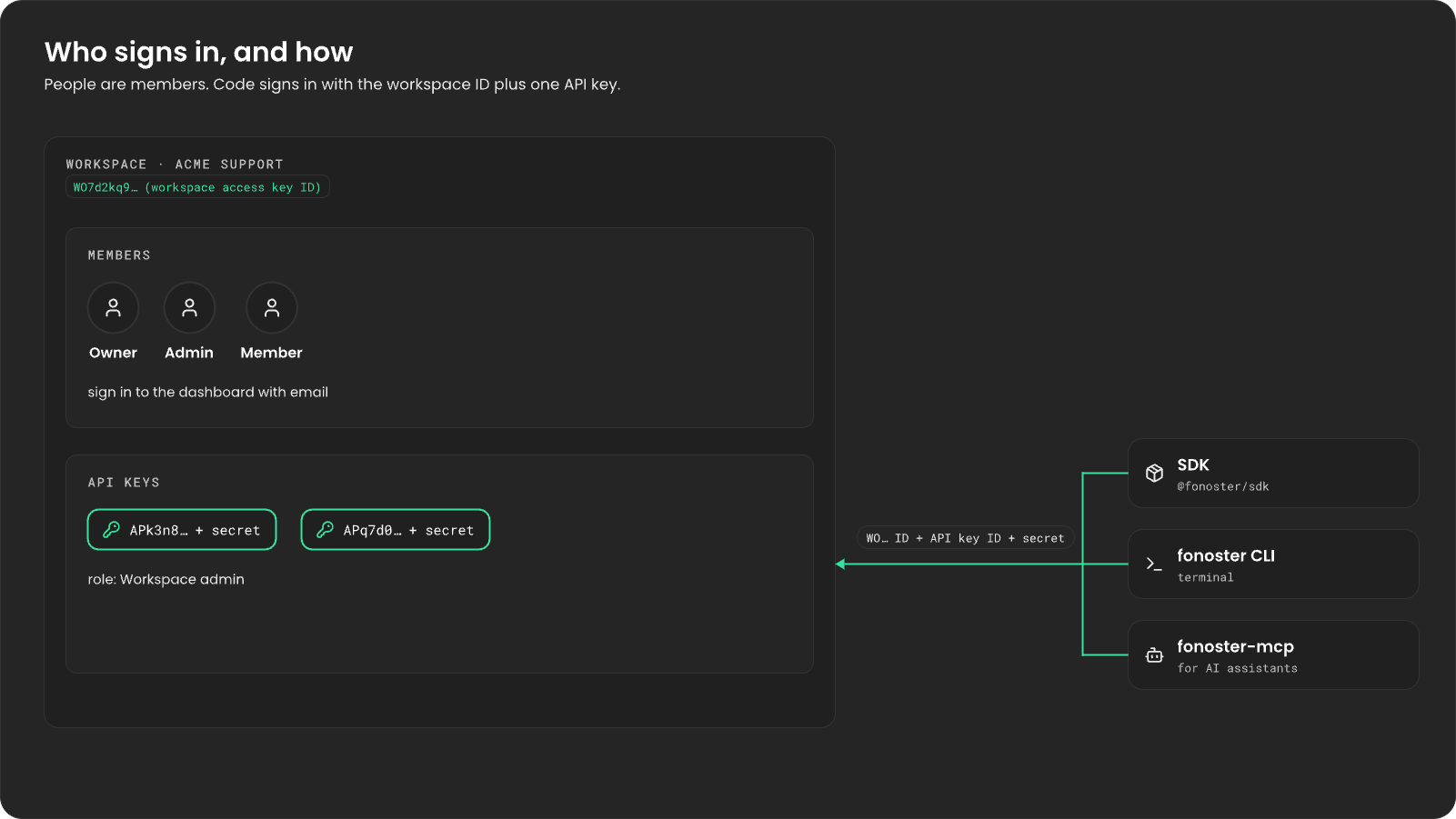
Before you begin
You need a Fonoster account. Sign up at app.fonoster.ai, or use the dashboard of your own Fonoster install. To manage members and API keys, you must be the workspace’s owner or an admin.Create and switch workspaces
The first time you sign in, the dashboard asks you to name your first workspace. To add another:- Open the workspace menu at the top of the sidebar.
- Choose New workspace.
- Enter a name, up to 50 characters, such as
Acme Support. - Choose Create.
Invite members
1
Send the invite
- Go to Settings > Members.
- Choose Invite member.
- Enter their Name and Email.
- Pick a Role: Member or Admin.
- Choose Send invite.
2
They accept
Fonoster emails them a link. Until they open it, they show as Invite sent in the members
list. Once they accept, they show as Active and the workspace appears in their workspace
menu.If the link expired or they lost the email, open the member’s ⋯ menu and choose
Resend invite.
Roles
A workspace has three roles. You pick Member or Admin when you invite someone. Owner is whoever created the workspace.
You can’t change a member’s role. To change it, remove them and invite them again with the new
role.
Create an API key
Your code and the CLI don’t sign in with your email and password. They use an API key. Each API key belongs to one workspace and can do what an admin can do there, so treat its secret like a password. Owners and admins create API keys. Every key has the role Workspace admin: it’s the only role an API key can have.- Dashboard
- SDK
- CLI
- Go to API keys.
- Choose Create API key.
- Keep the role Workspace admin.
- Under Expires, choose Never, In 30 days, In 90 days or In 1 year.
- Choose Create API key.
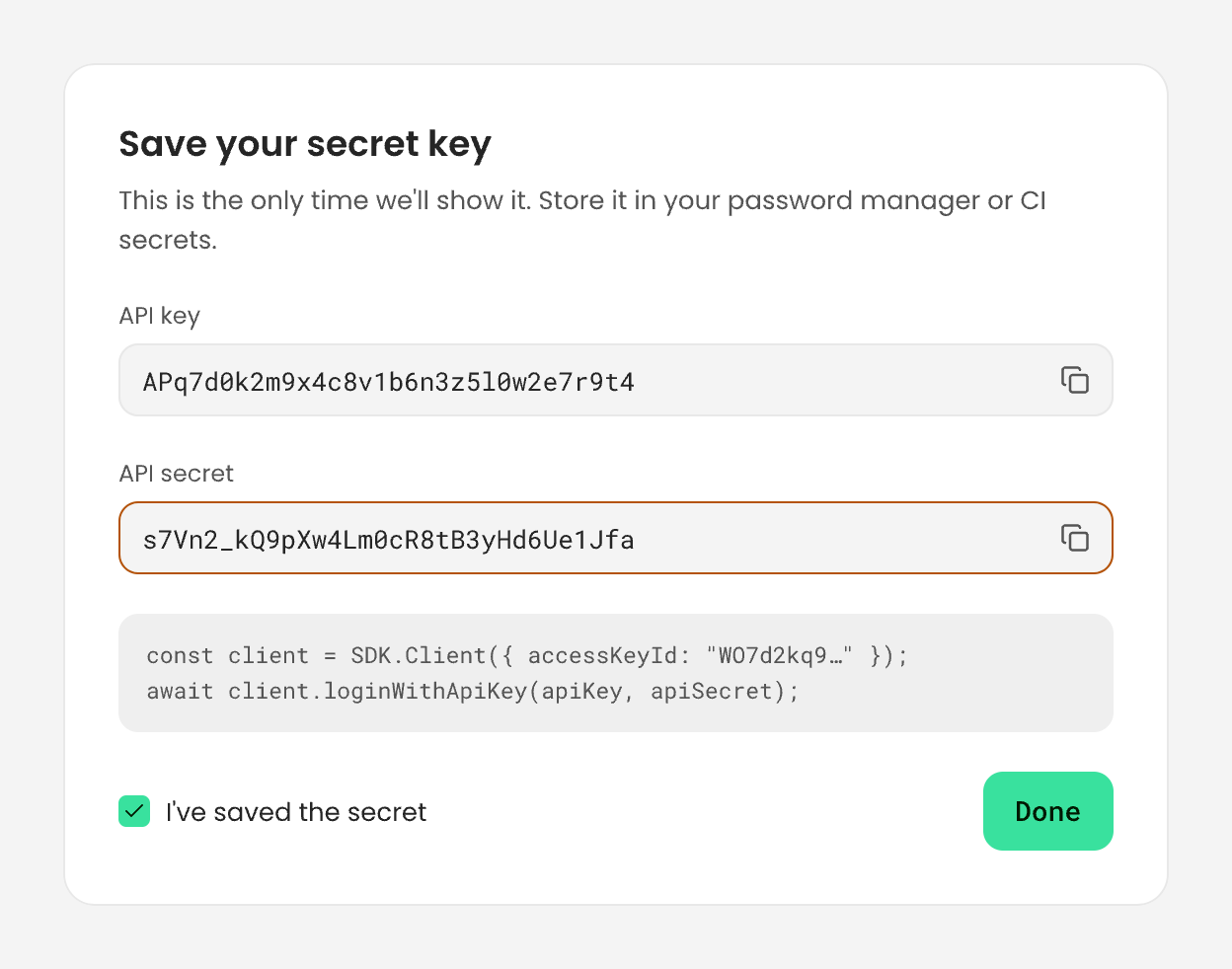
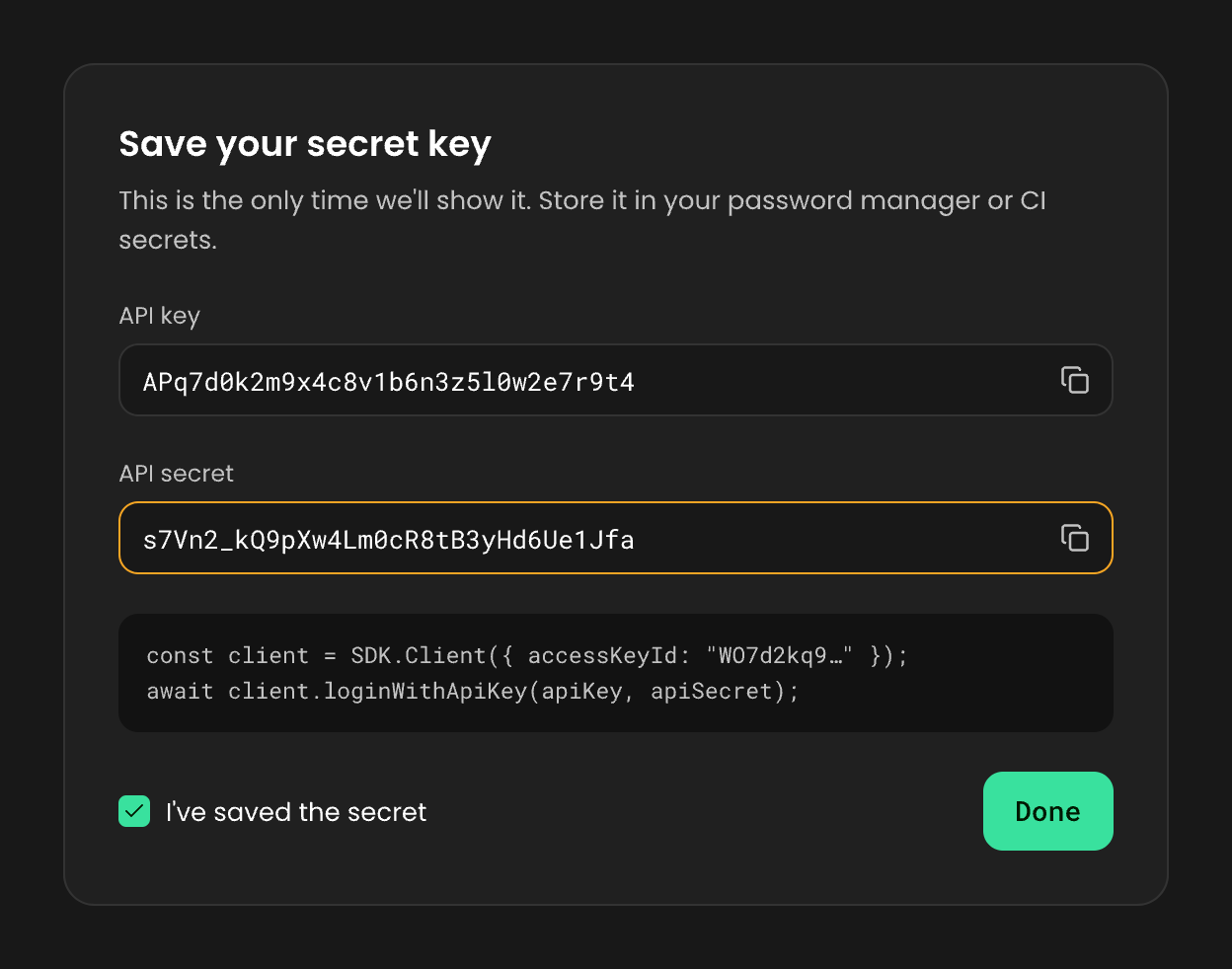
Your very first API key comes from the dashboard: the SDK and the CLI need a key to sign in.
The IDs you sign in with
To sign in from code, you need three values:
The workspace access key ID tells Fonoster which workspace a request is for. The API key ID and
secret prove who you are. They’re different values: don’t put the API key ID where the workspace
ID goes.
Sign in from the SDK
Create a client with the workspace access key ID, then sign in with the API key:api.fonoster.ai) unless you pass an endpoint. On your
own install, set endpoint to your API’s address. The client renews its session for you while
your code runs.
Keep the secret out of your code. Read it from an environment variable or your secret manager, as
above.
Sign in from the CLI
Install thefonoster CLI and log in. It asks for the endpoint (keep api.fonoster.ai for
Fonoster Cloud), the API key ID and the secret:
~/.fonoster/config.json. The
workspace you log in to becomes the active one, and every other command runs against it.
You can log in to several workspaces, one API key each, and switch between them:
workspaces:logout only forgets the key on this machine. The key still works. To stop it,
delete it.Regenerate or delete a key
Regenerate a key when its secret may have leaked. The key keeps its ID and gets a new secret. The old secret stops working right away, and clients signed in with it can’t renew their session. Anything that uses the key needs the new secret. Delete a key you no longer need. Apps and scripts that use it stop working, and it can’t be undone.- Dashboard
- SDK
- CLI
Go to API keys. Choose Regenerate on the key’s row, or open its ⋯ menu and choose
Delete, then confirm.
Delete a workspace
Only the owner can delete a workspace. Go to Settings > General and, under Danger zone, choose Delete workspace. Everything in it is deleted for every member, and it can’t be undone.What’s not available yet
- API key roles other than Workspace admin. A key can’t be limited to some resources or to read-only access.
- Changing a member’s role in place.
- Two-factor sign-in for your account.
Next steps
Use your own vendor keys
Run calls on your own Deepgram, ElevenLabs, OpenAI or Groq account.
Use Fonoster from an AI client
Let Claude or Cursor list your numbers and place calls.
Node SDK
Every SDK class and method.
CLI
Every developer command.