

How it works
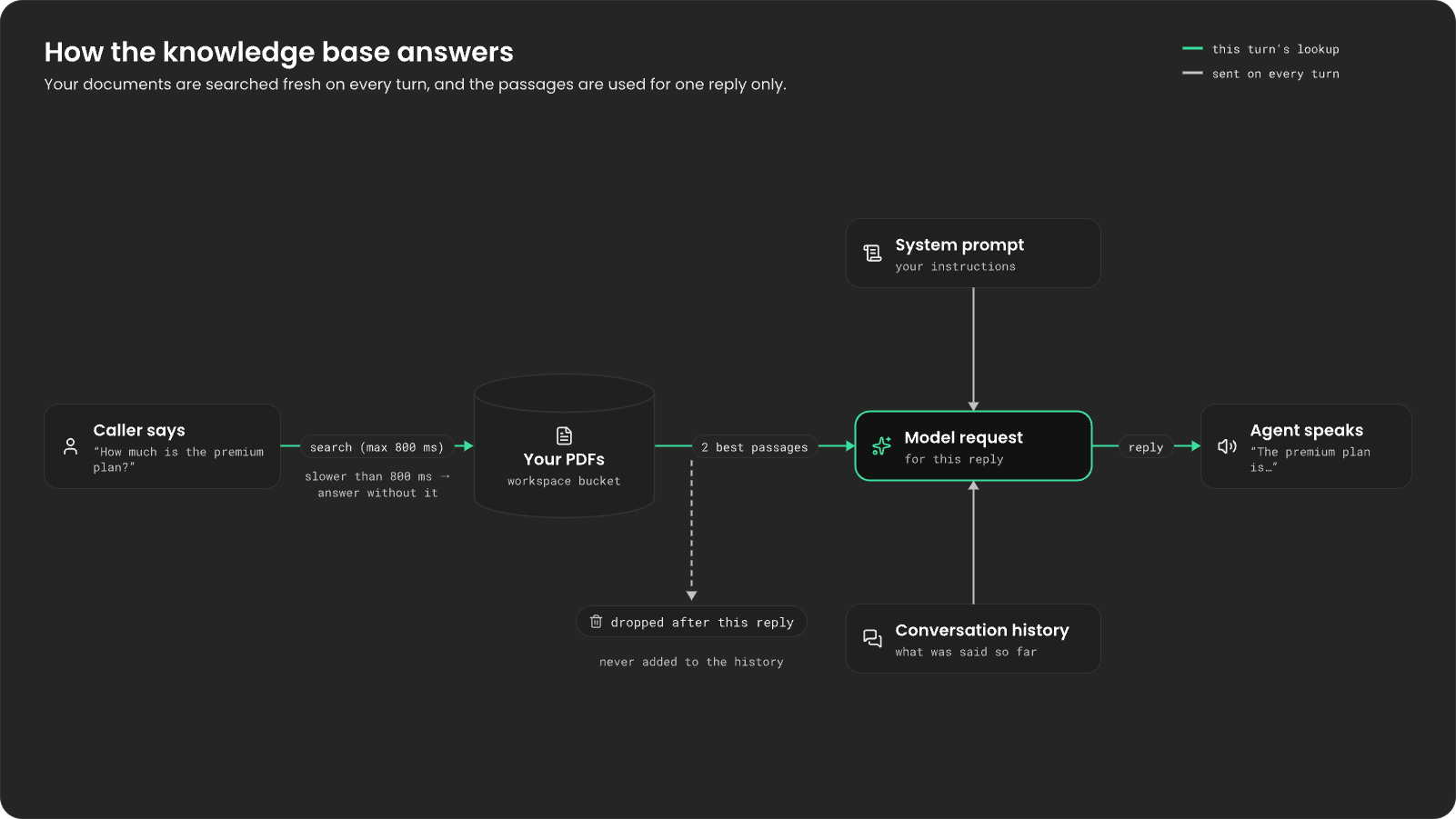
Before each reply, Autopilot searches your documents for the passages closest to what the caller just said. It gives the two best passages to the model for that reply only. They never go into the conversation history, so the next turn gets a fresh search. The search has 800 ms. If it takes longer, the agent answers without it, so a slow search never holds the caller up. Autopilot reads your documents when each call starts. On a call that begins with a question, the first answer can come before the documents are ready. In that case the agent answers from its prompt alone.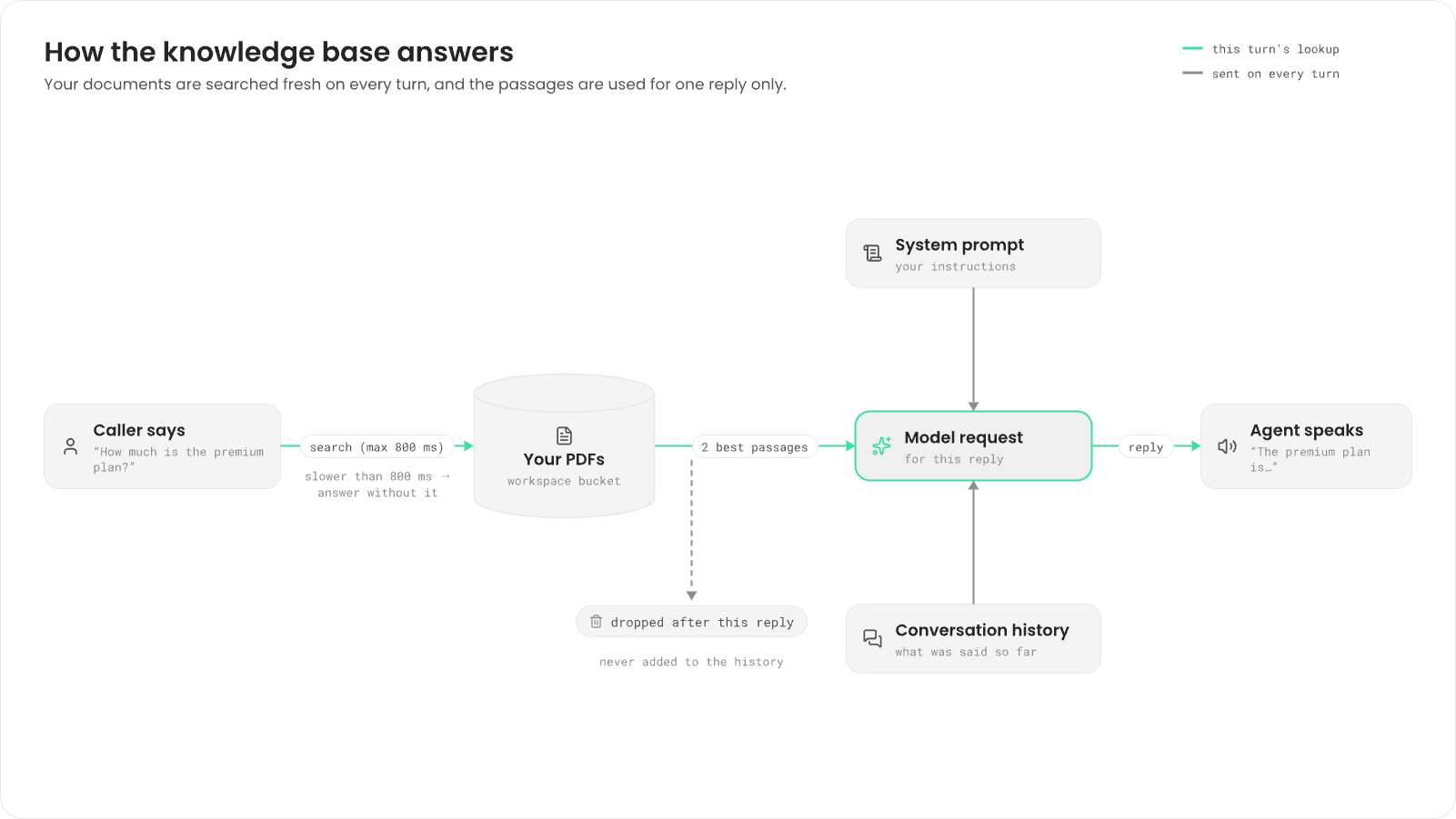
Who sets up what
A knowledge base needs storage for the documents, a document parser and an embeddings model. The operator of the install sets these up once. You, the developer, list the documents your agent uses.
If the operator hasn’t set up knowledge storage, Autopilot ignores the list, and your agent answers
from its prompt alone.
Before you begin
You need:- An Autopilot agent. See Build an Autopilot agent.
- Your documents as PDF files. Other formats aren’t supported.
- A way to put files in your workspace’s storage. Each workspace has its own bucket, named after the workspace ref in lowercase. Fonoster has no upload in the dashboard, the SDK or the CLI, so someone with access to the storage puts the files there.
Add documents to your agent
1
Store the documents
Put each PDF in your workspace’s bucket. Note each file’s key (its path in the bucket), such as
kb/price-list-2026.pdf.2
List them in the agent
Add an entry for each document to
languageModel.knowledgeBase. Each entry has three fields:The dashboard doesn’t show the knowledge base, but it keeps the list when you save the agent
there. Set it with the SDK or the CLI.
- SDK
- CLI
Add the list to the agent’s
languageModel:3
Tell the model how to use it
Add a line to the system prompt so the model leans on the passages and doesn’t guess:
4
Try it
Call the agent with Talk to agent and ask about something that’s only in your documents.
Give the call a moment after it connects, so the documents are ready.
Tips
- Keep documents focused. A short, current price list answers better than a long catalog where prices are buried.
- Put facts that every call needs, such as opening hours, in the prompt instead. The prompt is always there; a search can miss.
- If you need live data, such as an order’s status, use an HTTP tool. A knowledge base is for documents that change rarely.
Next steps
Give your agent tools
Fetch live data from your API during the call.
Write prompts for voice
Tell the model when to rely on your documents.