

Before you begin
You need:- Docker with Compose v2 (
docker compose versionprintsv2or later). - Node.js 22 or later. You use it to run the setup tool with
npx. curl.- About 6 GB of free disk for the images.
Fonoster uses port
8449 (dashboard and API), 5060 UDP and TCP (SIP), the UDP ranges
10000-10999 and 11000-11999 (call media), and, on localhost only, 4222 (NATS) and 9000-9001
(MinIO). Stop anything else that uses them, such as another Fonoster install, or change the ports
in step 2.If this machine ran Fonoster 0.27 or older with Docker Compose, stop it first: run
docker compose down in its folder. Don’t remove its volumes. The new install doesn’t use them.Install Fonoster
1
Download the release
Download the release and unpack it into a new The folder holds
fonoster folder:compose.yaml, compose.tls.yaml (for HTTPS, below), .env.example, a
config folder with one example per service and their schemas, and a README.md.2
Generate the configuration
Run It prints what it wrote:The host address is the one softphones, carriers and browsers use to reach this machine. To use a
different one, run
init to generate the secrets and keys, find this machine’s address, and write the
configuration:init again with --host-ip <address>.3
Check the configuration
Validate the configuration before you start:Each service reports
valid:4
Start Fonoster
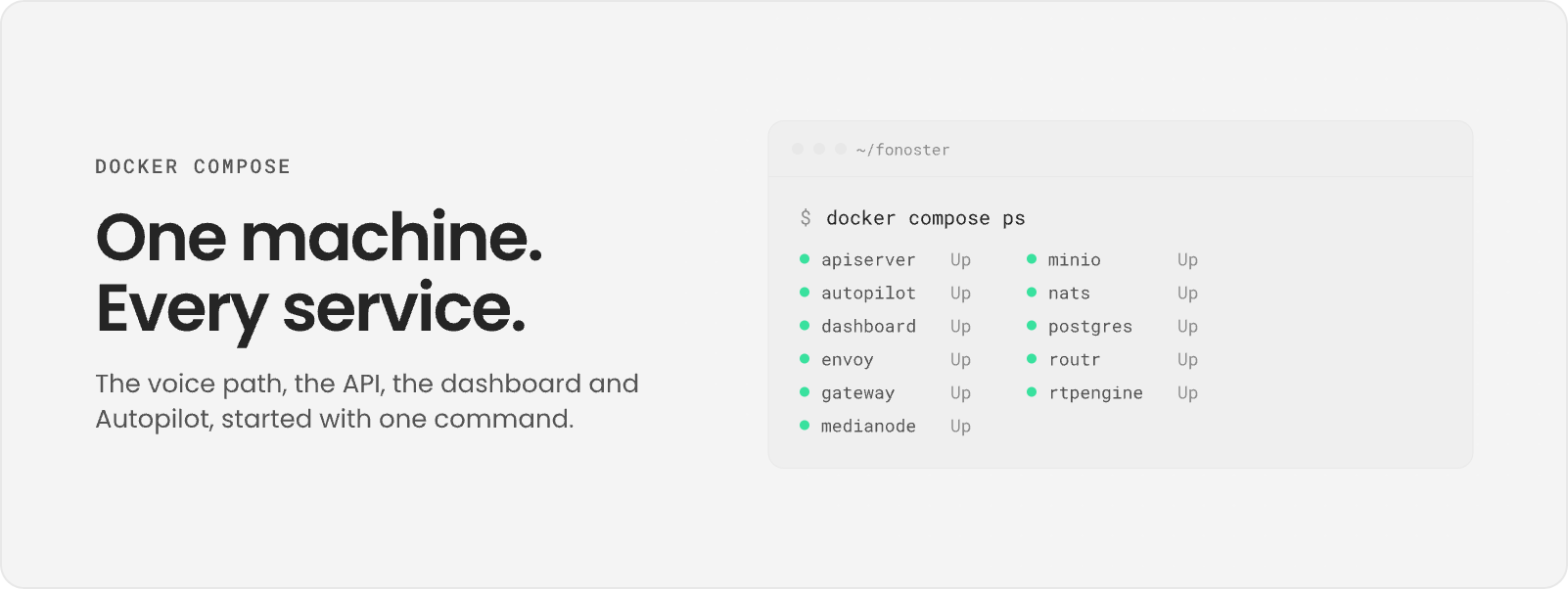
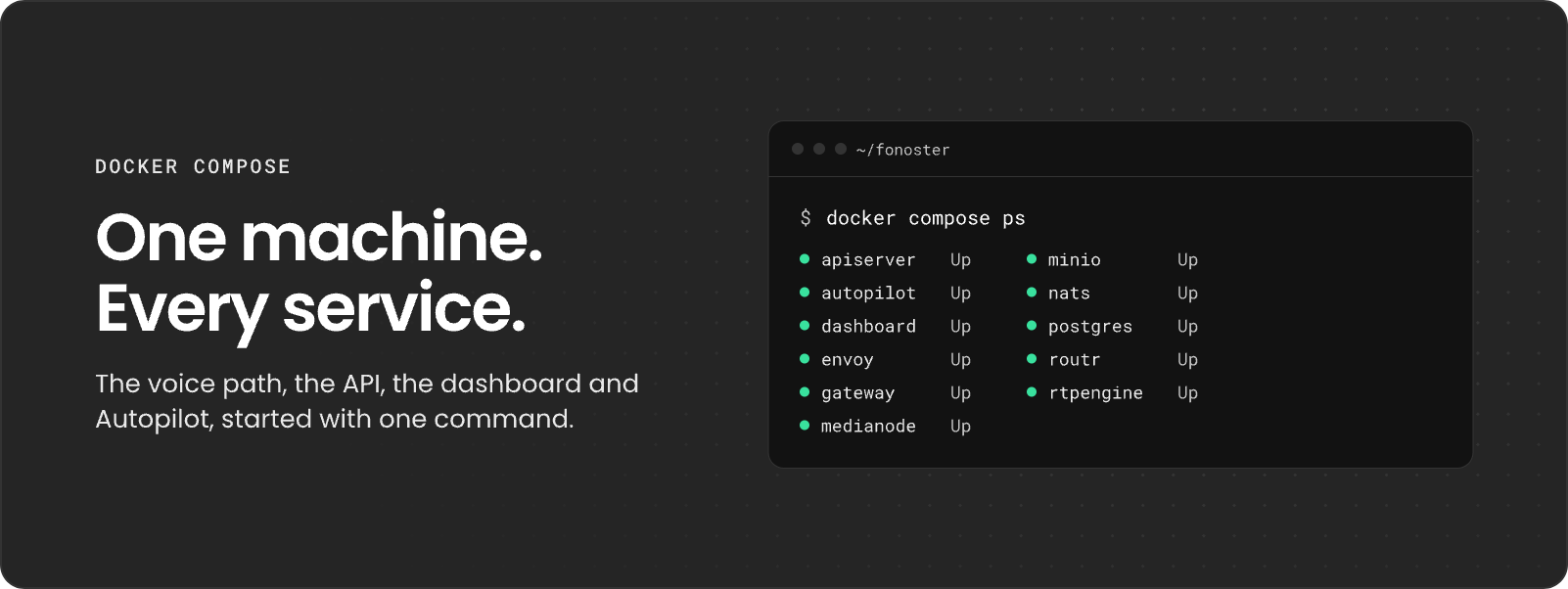
Start every service in the background:The first start downloads the images, which takes a few minutes. Then list the services to see
them running:You see
apiserver, autopilot, dashboard, envoy, appbridge, roomr, minio, nats,
postgres, routr and rtpengine, each Up.5
Get your login
Print the dashboard address and the owner’s login:
6
Sign in to the dashboard
Open the dashboard address in your browser and sign in with the owner’s email and password.
On Choose a workspace, select your workspace.
Fonoster is running and you are signed in as the owner.
Where your files are
Everything lives in thefonoster folder:
Add platform keys
Calls need at least a text-to-speech vendor. Fonoster offers every vendor in its catalog to every workspace, and calls use your platform key for that vendor unless the workspace added its own in the dashboard under Vendor keys.init writes a placeholder platform key for each vendor. Replace them with your keys:
Then restart the two services that read them:
A vendor whose placeholder you leave in place is still offered, and its calls fail until a key is
set. If the dashboard’s Vendor keys page says no vendors are configured, the catalog has no
vendor left that takes a key.
Serve over HTTPS
By default the dashboard and API use plain HTTP on port8449, on every interface. That’s fine on
a trusted network. On the internet, passwords, API keys and tokens would cross it in clear text, so
init and check print a warning when PUBLIC_URL is http:// on an address that isn’t
loopback or private. Turn on HTTPS in one of two ways.
Envoy with your certificate
You need a domain name that points to this machine, and a certificate and private key for it in PEM files.1
Get a certificate
With Let’s Encrypt, get one with It writes
certbot while ports 80 and
443 are still free:fullchain.pem and privkey.pem in /etc/letsencrypt/live/voice.example.com/.
Any CA works: use your own files instead.2
Turn on HTTPS in .env
Uncomment and fill these lines in
.env, and set PUBLIC_URL to the certificate’s domain:COMPOSE_FILE adds compose.tls.yaml, which mounts the two files read-only into Envoy.3
Apply it
Write the configuration again and recreate the services:
init warns if a file is missing or PUBLIC_URL isn’t https://. Envoy now serves HTTPS on
port 443 and redirects port 80 to it. Port 8449 is no longer published. Browser calls
switch to wss://voice.example.com/sip on their own.80, stop it while certbot renews:
A reverse proxy in front
If you already run a proxy that terminates TLS (Caddy, nginx, Traefik, a cloud load balancer), keep Envoy on plain HTTP and publish it on this machine only:init and docker compose up -d, then point the proxy at 127.0.0.1:8449. The proxy must
forward gRPC (HTTP/2) and WebSocket upgrades on /sip.
SIP over TLS
SIP stays on UDP and TCP5060. To also accept SIP over TLS on 5061, convert your certificate
into a PKCS#12 keystore for Routr:
routr lines in compose.tls.yaml and the tls transport in
config/routr-edgeport.example.yaml, set its keyStorePassword and trustStorePassword to
<password>, and run init and docker compose up -d. Carriers and softphones then use
transport=tls on port 5061. Call media (RTP) isn’t encrypted by this.
Let carriers and phones reach you
Fonoster names SIP addresses after yourdomain in config/fonoster.yaml, the way Twilio does:
- Trunks: a trunk’s inbound URI, where your carrier sends calls, is one label under
pstn.<domain>. A trunk named Acme getsacme.pstn.example.com. - Domains: a domain, where SIP agents register, is one label under
sip.<domain>, such asacme.sip.example.com.
config/fonoster.yaml, then restart the API server:
Next steps
Make your first call
Add a vendor key, create an agent, and call it from a softphone.
Configure services
Change what each service does with the files in
config/.