

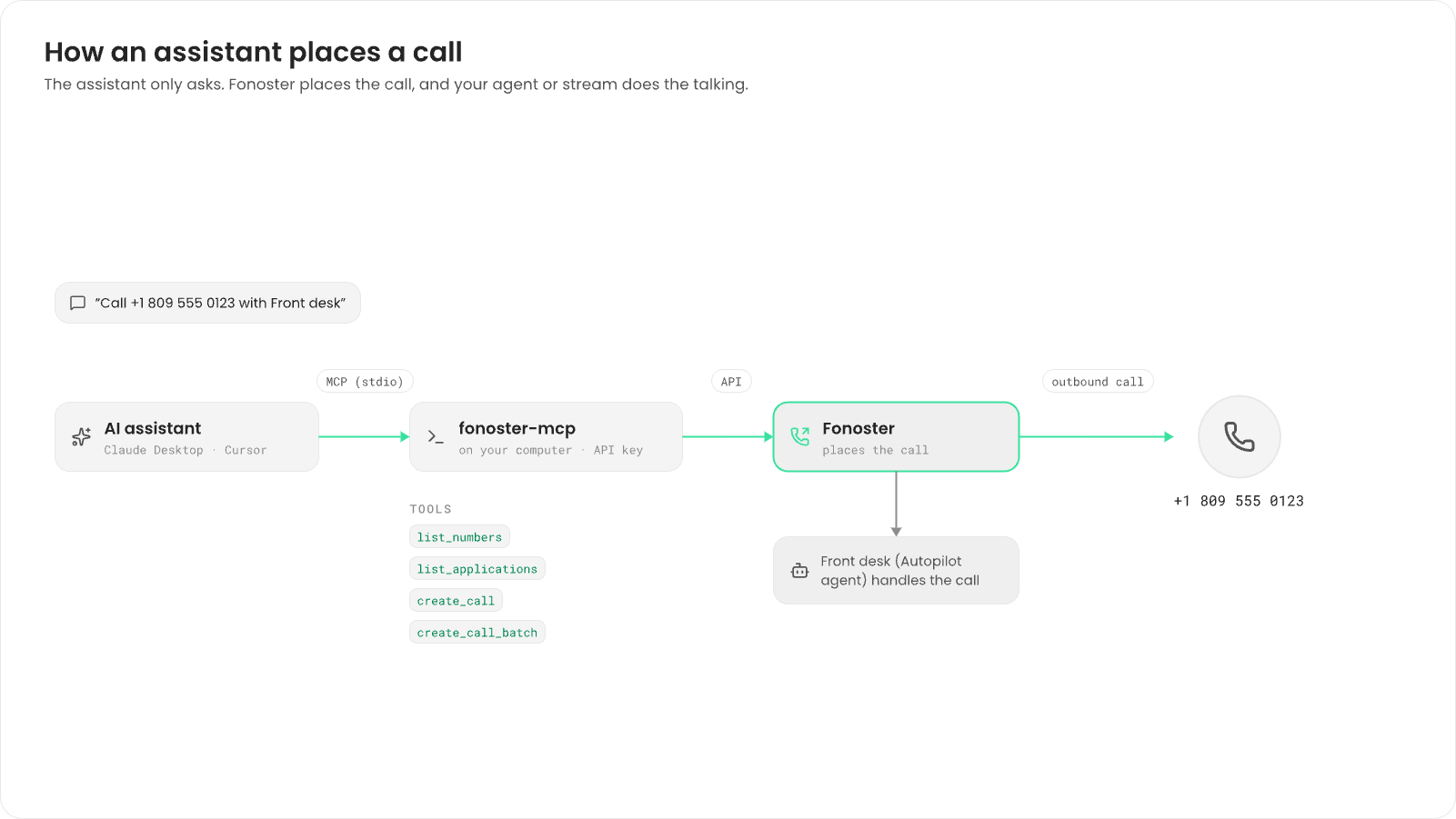
fonoster-mcp is a Model Context Protocol server for your
workspace. Add it to an AI client such as Claude Desktop or Cursor, and you can ask in plain
words: “Call +1 809 555 0123 from my main number with the Front desk agent.” The AI client looks up
your numbers and applications and places the call.
This page is about controlling Fonoster from an AI client. It isn’t a way to give an Autopilot
agent MCP tools: agents run built-in and HTTP tools only.
Before you begin
You need:- An API key and your workspace access key ID (
WO…). See Workspaces, members and API keys. - A number in your workspace to call from. See Numbers and routing.
- An Autopilot agent or a stream to handle the calls.
- Node.js 22 or later. The AI client starts the server with
npx.
Connect your AI client
- Claude Desktop (CLI)
- Claude Desktop (manual)
- Cursor
If you use the Then add the Fonoster server to Claude Desktop with the active workspace’s login:It prints:To use another workspace you’re logged in to, pass its ref with
fonoster CLI, it can write Claude Desktop’s configuration for you. Log in to
the workspace first:--workspace. The command
works on macOS and Windows, and keeps any other servers already in the file.Restart Claude Desktop to load the server.Settings
The server reads these environment variables:
On your own install, add
MCP_ENDPOINT with your API’s address. mcp:configure doesn’t write it,
so add it to the file by hand.
Check it works
In the AI client, ask: “List my Fonoster numbers.” It uses thelist_numbers tool and answers
with your numbers. If it can’t start the server or sign in, check the three IDs, and that the key
hasn’t expired or been deleted.
Place a call
Ask for the call in plain words, with the number in E.164 format:list_applications, then uses create_call. Fonoster
dials the number, and the agent or stream you named handles the call. The AI client answers with
the call’s ref, such as Call created with REF: 3f6b1d8e-2a4c-4e9f-8b71-5c0d9e2a6f13. Find the call
under Calls in the dashboard.
To call a list of numbers, ask for a batch:
create_call_batch. It answers right away, and the calls go out one by one in
the background at the rate you asked for (20 per minute by default).
For larger campaigns, place calls from your own code. See
Make outbound calls.
The fonoster mcp:configure command and its flags are in the
CLI reference.
Tools
For both call tools:
fromis a number in your workspace, in E.164 format, such as+18095550100.tois an E.164 number, a SIP user or asip:URI.app_refis the ref of the agent or stream that handles the call.timeoutis how many seconds to ring before giving up, up to 120. It defaults to 30.metadatais a JSON object passed to your application with the call.
create_call_prompt. It walks the AI client through a call
step by step: ask for the numbers to call, offer your numbers to call from, pick the application,
confirm the details, then place the call. In Claude Desktop, pick it from the prompts menu.
What it can’t do yet
The server only lists numbers and applications and places calls. It can’t create or change agents, numbers or other resources, read call records, or hang up a call.Next steps
Make outbound calls
Place calls from your own code with the SDK.
Build an Autopilot agent
Write the agent that handles the calls.