

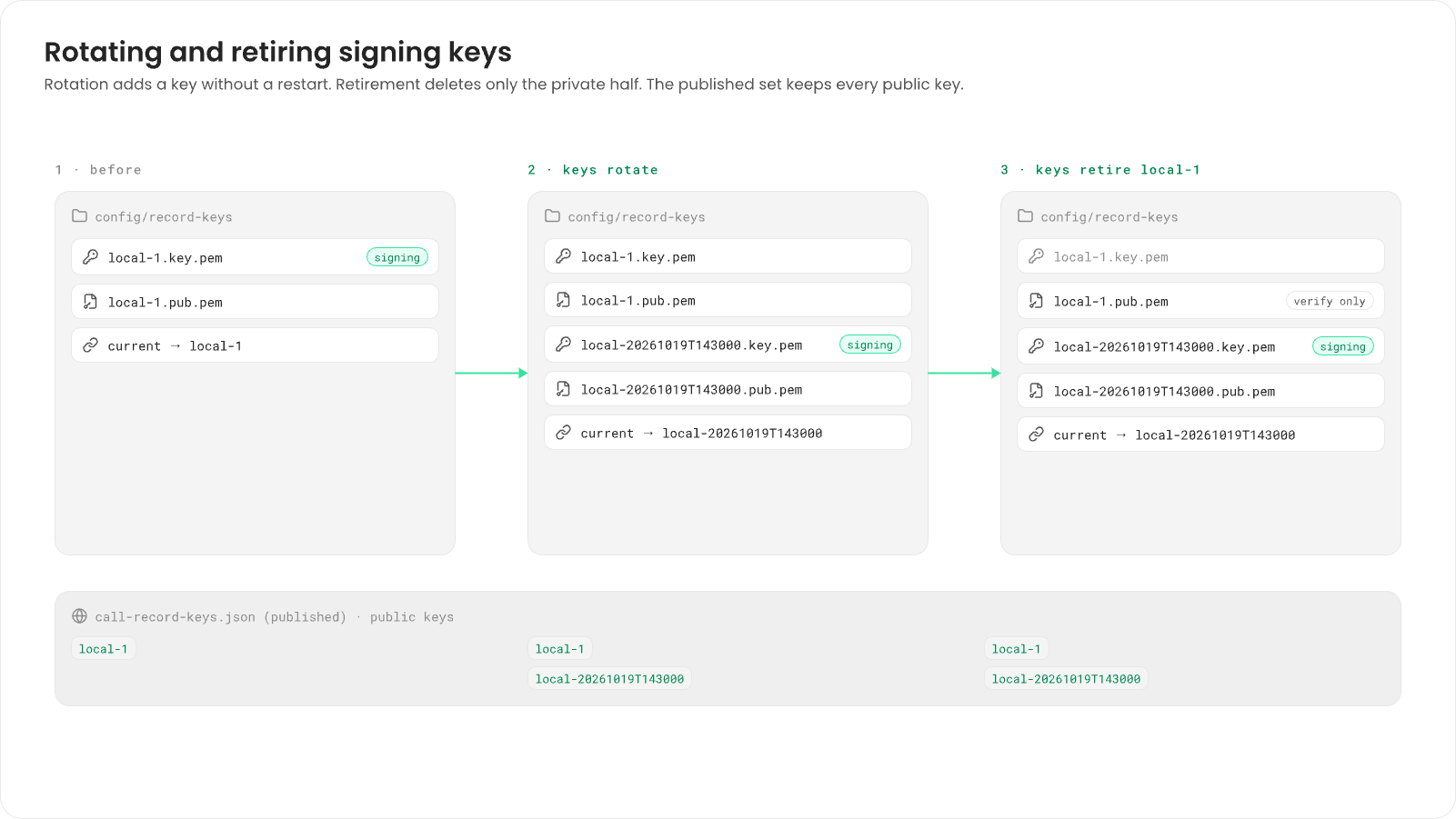
local-1, in config/keys/records.pem. To rotate,
you move it into a key directory once. After that, each rotation is one command.
Before you begin
You need:- Fonoster installed with Docker Compose. See Install with Docker Compose.
- Node.js 22 or later, to run
fonoster-callrecordwithnpx. openssl.
fonoster folder.
Move to a key directory
A key directory holds each key as<kid>.key.pem (private) and <kid>.pub.pem (public), plus a
current file naming the key that signs. You do this once.
1
Put the current key in a directory
Copy the install’s key into a new Keeping
config/record-keys folder under its ID, local-1, write
its public half next to it, and mark it current:local-1 in the directory keeps it published, so records already signed with it still
verify.2
Point the gateway at the directory
In Then write the configuration:
config/gateway.example.yaml, change signingKey under callRecord to the directory as the
gateway sees it:3
Mount the directory in the gateway
In
compose.yaml, under the appbridge service’s volumes, replace the records.pem line
with the directory:4
Recreate the gateway
Recreate the voice gateway so it gets the new mount. Calls in progress end, so do this when the
install is quiet:
*:
Rotate the key
1
Create a new key
Create a new P-256 key and make it current. Pass
--prefix starts its ID, and the time is added
after it:--kid <id> instead to choose the whole ID (letters, digits, ., _ and -, up to 64
characters). The tool never overwrites an existing key.2
Let the gateway read it
The tool writes the private key readable by you only, and the gateway runs as another user.
Make it readable, as
init does for the install’s other keys:kid). The old key stays in the directory and in the published key set.
Publish the public keys
Developers verify a record with the key set itsjku header points to (see
Verify a record). The Compose install doesn’t publish a key
set and its records carry no jku, so publish one yourself.
1
Print the key set
Print every public key in the directory as a JWK Set:It holds the current key and every earlier one, so records signed before a rotation still
verify.
2
Host it
Serve the file over HTTPS from a web server you run, at the path Fonoster uses for it:
https://voice.example.com/.well-known/call-record-keys.json.3
Name the URL in records
Add the URL as Records sealed from then on carry the URL. Earlier records don’t.
jku in config/gateway.example.yaml, run init, and recreate the gateway as
above:Retire an old private key
Once a newer key is current, delete the old private key. Its public half stays, so its records keep verifying:local-1 is the current key; rotate first.
keys list then shows the old key as verify-only:
config/record-keys with .env. Without the current private key, the gateway can’t seal
records.
How long records are kept
Your install keeps call records forever by default. Workspace owners and admins set retention per part (recording, transcript, messages) with the SDK or the HTTP API. See Retention and erasure. The API server applies those policies every 60 minutes. To change how often, setcallRecords.retentionIntervalMinutes in
config/fonoster.example.yaml and run init again.
Next steps
Read and verify call records
How developers fetch a record and check its signature.
Send call metrics to ClickHouse
Load every sealed record’s metrics into your own ClickHouse.