

8449, so passwords, API keys and tokens cross the network in clear text. Use this page to serve
every name you use over HTTPS, and to renew the certificate without touching the machine again.
.env, and Envoy recreated after each renewal so it loads the new files. This page does them
with certbot and Let’s Encrypt. To use other tools, see
Other ways.
Before you begin
You need:- Fonoster installed with Docker Compose. See Install with Docker Compose.
- Every name you serve pointing at this machine, for example
app.example.comfor the dashboard andapi.example.comfor the SDKs. One name for both works too. - Ports
80and443free on this machine and open in any firewall in front of it.
Get a certificate
1
Install certbot
Install certbot from your distribution. On Ubuntu and Debian:The package also installs a timer that runs renewals twice a day.
2
Get one certificate for every name
Get a certificate with one The certificate and key are in
-d per name. The first name also names the folder the files land in:/etc/letsencrypt/live/app.example.com/ as fullchain.pem and
privkey.pem.Turn on HTTPS
1
Set the four lines in .env
In your
fonoster folder, set these lines in .env. PUBLIC_URL is the address people open
the dashboard at:.env
2
Apply it
Write the configuration again and recreate the services:Envoy now serves HTTPS on
443 and redirects 80 to it. Port 8449 closes, and browser calls
switch to wss:// on their own.3
Check it
Request the dashboard over HTTPS. It answers
200:Renew automatically
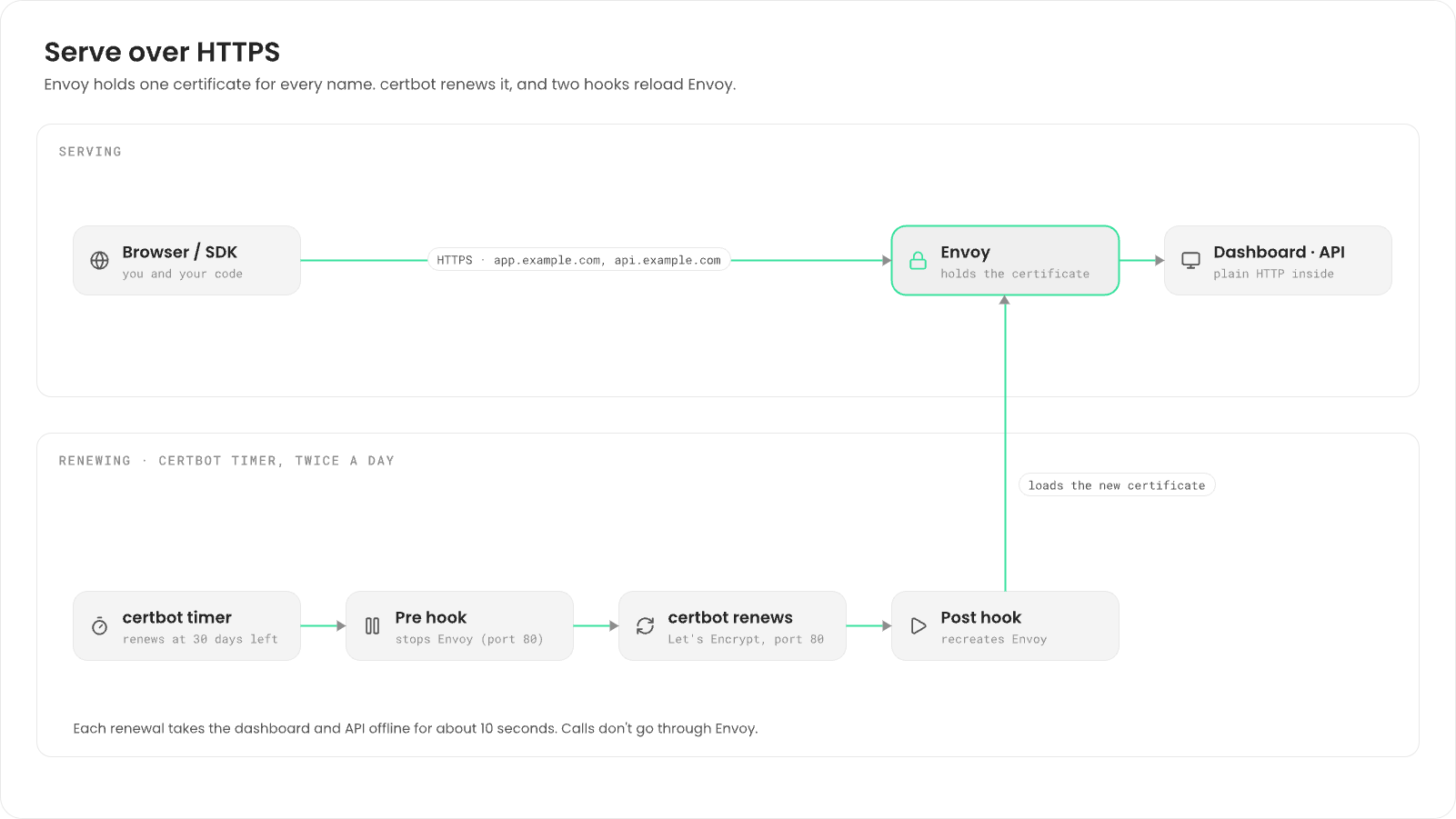
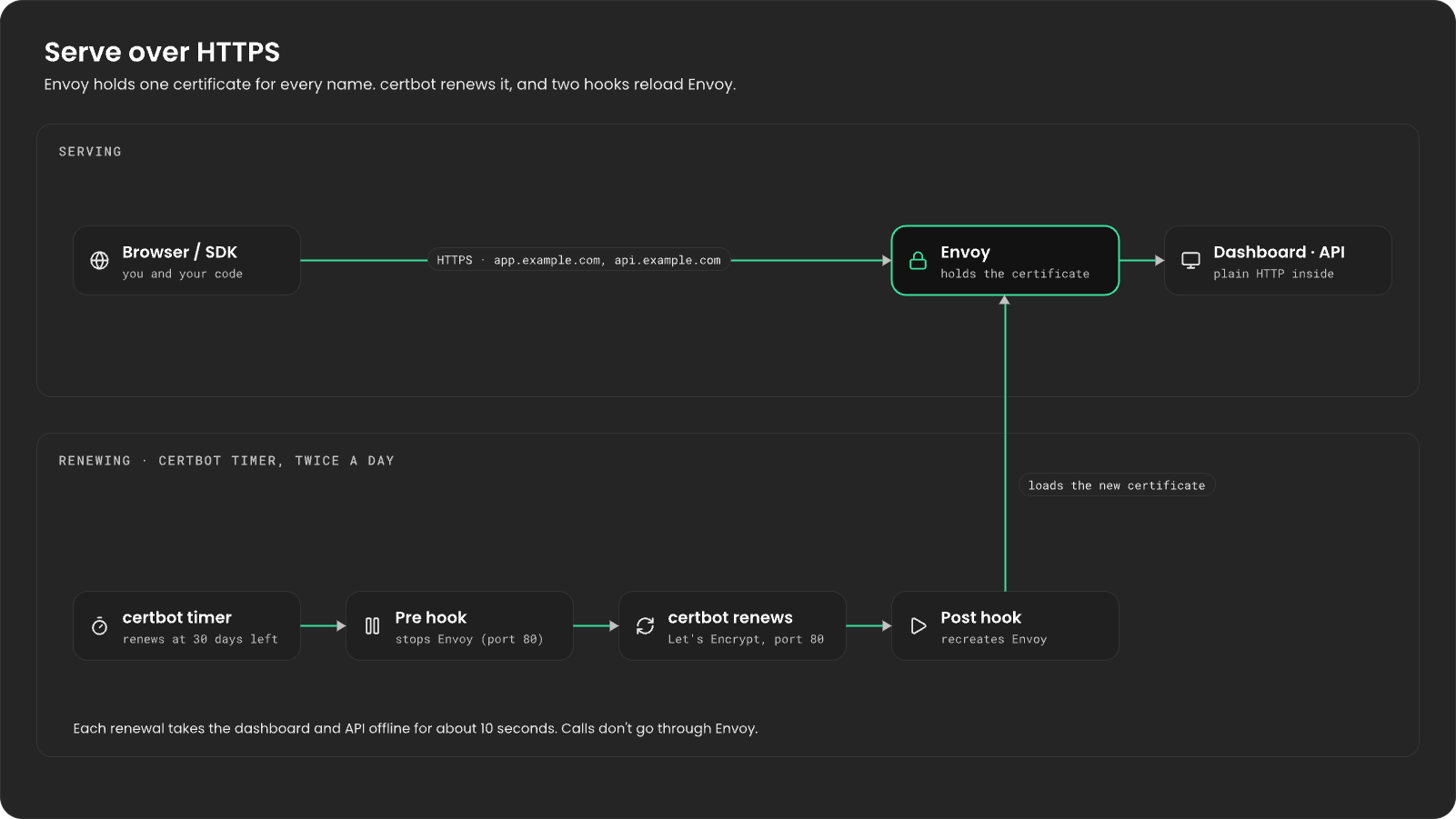
The timer renews the certificate when it has 30 days left. Envoy holds port80 and reads the
certificate only when its container is created, so add two hooks: one stops Envoy before a renewal,
the other recreates it after.
1
Add the hooks
Write the two hook scripts. Change
/opt/fonoster if your fonoster folder is elsewhere:2
Try a renewal
Run a renewal against Let’s Encrypt’s test servers, hooks included:It ends with
Congratulations, all simulated renewals succeeded. certbot reports the hooks’
progress lines as “error output”. They aren’t errors.Each renewal takes the dashboard and API offline for about ten seconds. Calls
in progress aren’t affected: SIP and call audio don’t go through Envoy.
Other ways
DNS challenge (no downtime)
DNS challenge (no downtime)
certbot can prove you own the names through your DNS provider instead of port
80, so Envoy
keeps running during renewals. Install your provider’s certbot plugin, issue the certificate
with it instead of --standalone, and keep only the post hook.A proxy in front
A proxy in front
If a proxy already terminates TLS (Caddy, nginx, Traefik, a cloud load balancer), keep Envoy on
plain HTTP on this machine only and let the proxy hold the certificate:Run
.env
init and docker compose up -d, then point the proxy at 127.0.0.1:8449. It must forward
gRPC (HTTP/2) and WebSocket upgrades on /sip.A certificate from another CA
A certificate from another CA
Point
TLS_CERT and TLS_KEY at your PEM files: the certificate chain and the private key.
After you replace them, recreate Envoy with docker compose up -d --force-recreate envoy.SIP over TLS
Accept SIP over TLS on port 5061
Accept SIP over TLS on port 5061
SIP stays on UDP and TCP Then uncomment the
5060. To also accept SIP over TLS on 5061, convert your certificate
into a PKCS#12 keystore for Routr:routr lines in compose.tls.yaml and the tls transport in
config/routr-edgeport.example.yaml, set its keyStorePassword and trustStorePassword to
<password>, and run init and docker compose up -d. Carriers and softphones then use
transport=tls on port 5061. Call audio isn’t encrypted by this.The keystore is a copy of the certificate, so rebuild it after each renewal: add the openssl
line and docker compose up -d --force-recreate routr to the post hook.Troubleshooting
init warns that PUBLIC_URL is http://
init warns that PUBLIC_URL is http://
HTTPS is on, but
PUBLIC_URL still starts with http://. Set it to https:// and the
certificate’s name, then run init again.init warns that TLS_CERT or TLS_KEY is not set or not found
init warns that TLS_CERT or TLS_KEY is not set or not found
COMPOSE_FILE names compose.tls.yaml, so Compose needs both files. Check
the two paths in .env exist on this machine.init warns that Envoy still serves plain HTTP
init warns that Envoy still serves plain HTTP
TLS_CERT and TLS_KEY are set, but COMPOSE_FILE doesn’t name
compose.tls.yaml. Add the COMPOSE_FILE line.certbot can't bind to port 80
certbot can't bind to port 80
Something holds port
80, usually Envoy. Add the hooks above, or stop Envoy before you issue
the first certificate.